Python

Django Favicon Setup (including Admin)

Do you want to add a favicon to your Django site the right way? Want to add it to your admin site as well? Read this guide to find out how!

What is a Favicon?

A favicon (a.k.a a “favorite icon” or a “shortcut icon”) is a small image that appears with the title of a web page in a browser. Typically, it’s a logo. Favicons were first introduced by Internet Explorer 5 in 1999, and they have since been standardized by W3C. Traditionally, a site’s favicon is saved as 16×16 pixel “favicon.ico” file in the site’s root directory, but many contemporary browsers support other sizes, formats, and locations. There are a plethora of free favicon generators available online. Every serious website should have a favicon.
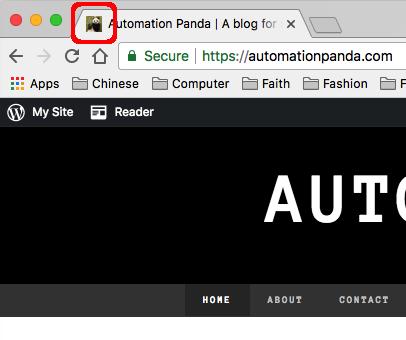
AP Favicon

The favicon for this blog is circled above in red.

Making the Favicon a Static File

Before embedding the favicon in web pages, it must be added to the Django project as a static file. Make sure the favicon is accessible however you choose to set up static files. The simplest approach would be to put the image file under a directory named static/images and use the standard static file settings. However, I strongly recommend reading the official docs on static files:

Embedding the Favicon into HTML

Adding the favicon to a Django web page is really no different than adding it to any other type of web page. Simply add the link for the favicon file to the HTML template file’s header using the static URL. It should look something like this:


<!DOCTYPE html>
<!– The link tag within the head section adds the favicon to the page. –>
<!– Presume that the favicon is a static file accessible at the images/favicon path. –>
<!– Remember to "load static", too! –>
{% load static %}
<html lang="en">
<head>
<meta charset="UTF-8">
<title>My Page</title>
<link rel="shortcut icon" href="{% static 'images/favicon.ico' %}" />
</head>
<body>
</body>
</html>

Better Reuse with a Parent Template

Most sites use only one favicon for all pages. Rather than adding the same favicon explicitly to every page, it would be better to write a parent template that adds it automatically for all pages. A basic parent template could look like this:


<!DOCTYPE html>
<!– This is a basic example of a Django parent template. –>
<!– It adds a favicon to the page. –>
<!– The title is set by overriding the "title" block. –>
<!– Body content is added by overriding the "content" block. –>
<!– Tweak this parent template to meet your project's needs. –>
{% load static %}
<html lang="en">
{% block head %}
<head>
<meta charset="UTF-8">
<title>{% block title %}{% endblock %}</title>
<link rel="shortcut icon" href="{% static 'images/favicon.ico' %}" />
</head>
{% endblock %}
<body>
{% block content %}
{% endblock %}
</body>
</html>

And a child of it could look like this:


<!– This is an example of a Django child template. –>
<!– It extends: https://gist.github.com/d7f20ccd5620f64d761ec546fd9eb37a –>
<!– The parent template sets the favicon. –>
{% extends "django_example_parent.html" %}
{% block title %}My Page{% endblock %}
{% block content %}
<div>
</div>
{% endblock %}

As good practice, other common things like CSS links could also be added to the parent template. Customize parent templates to your project’s needs.

Admin Site Favicon

While the admin site is not the main site most people will see, it is still nice to give it a favicon. The best way to set the favicon is to override admin templates, as explained in this StackOverflow post. This approach is like an extension of the previous one: a new template will be inserted between an existing parent-child inheritance to set the favicon. Create a new template at templates/admin/base_site.html with the contents below, and all admin site pages will have the favicon!


<!– The path and name for this file should be "templates/admin/base_site.html". –>
<!– It overrides the original admin template and will be picked up by all of its children. –>
<!– This template override has been verified for Django 1.11 and 2.0. –>
{% extends "admin/base_site.html" %}
{% load static %}
{% block extrahead %}
<link rel="shortcut icon" href="{% static 'images/favicon.ico' %}" />
{% endblock %}

Make sure the template directory path is included in the TEMPLATES setting if it is outside of an app:


TEMPLATES = [
{
# …
'DIRS': [os.path.join(BASE_DIR, 'templates')],
# …
},
]

Django REST Framework Browsable API Favicon

The Django REST Framework is a great extension to Django for creating simple, standard, and seamless REST APIs for a site. It also provides a browsable API so that humans can easily see and use the endpoints. It’s fairly easy to change the browsable API’s favicon using a similar template override. Create a new template at templates/rest_framework/api.html with the following contents:


<!– The path and name for this file should be "templates/rest_framework/api.html". –>
<!– It overrides the original browsable API template and will be picked up by all of its children. –>
<!– This template override has been verified for Django 2.0. –>
{% extends "rest_framework/base.html" %}
{% load static %}
{% block style %}
{{ block.super }}
<link rel="shortcut icon" href="{% static 'images/favicon.ico' %}" />
{% endblock %}

Favicon URL Redirect

A number of other articles (here, here, and here) suggest adding a URL redirect for the favicon file. Unfortunately, I got mixed results when I attempted this method myself: it worked on Mozilla Firefox and Microsoft Edge but not Google Chrome. (Yes, I tried clearing the cache and all that jazz.)

Django Favicon Apps

There are open-source Django apps for handling favicons more easily. I have not used them personally, but they are at least worth mentioning:

Django Settings for Different Environments

The Django settings module is one of the most important files in a Django web project. It contains all of the configuration for the project, both standard and custom. Django settings are really nice because they are written in Python instead of a text file format, meaning they can be set using code instead of literal values.

Settings must often use different values for different environments. The DEBUG setting is a perfect example: It should always be True in a development environment to help debug problems, but it should never be True in a production environment to avoid security holes. Another good example is the DATABASES setting: Development and test environments should not use production data. This article covers two good ways to handle environment-specific settings.

Multiple Settings Modules

The simplest way to handle environment-specific settings is to create a separate settings module for each environment. Different settings values would be assigned in each module. For example, instead of just one mysite.settings module, there could be:

mysite
`-- mysite
    |-- __init__.py
    |-- settings_dev.py
    |-- settings_prod.py
    `-- settings_test.py

For the DEBUG setting, mysite.settings_dev and mysite.settings_test would contain:

DEBUG = True

And mysite.settings_prod would contain:

DEBUG = False

Then, set the DJANGO_SETTINGS_MODULE environment variable to the name of the desired settings module. The default value is mysite.settings, where “mysite” is the name of the project. Make sure to set this variable wherever the Django site is run. Also make sure that the settings module is available in PYTHONPATH.

More details on this approach are given on the Django settings page.

Using Environment Variables

One problem with multiple settings modules is that many settings won’t need to be different between environments. Duplicating these settings then violates the DRY principle (“don’t repeat yourself”). A more advanced approach for handling environment-specific settings is to use custom environment variables as Django inputs. Remember, the settings module is written in Python, so values can be set using calls and conditions. One settings module can be written to handle all environments.

Add a function like this to read environment variables:

# Imports
import os
from django.core.exceptions import ImproperlyConfigured

# Function
def read_env_var(name, default=None):
    if not value:
       raise ImproperlyConfigured("The %s value must be provided as an env variable" % name)
    return value

Then, use it to read environment variables in the settings module:

# Read the secret key directly
# This is a required value
# If the env variable is not found, the site will not launch
SECRET_KEY = read_env_var("SECRET_KEY")

# Read the debug setting
# Default the value to False
# Environment variables are strings, so the value must be converted to a Boolean
DEBUG = read_env_var("DEBUG", "False") == "True"

To avoid a proliferation of required environment variables, one variable could be used to specify the target environment like this:

# Read the target environment
TARGET_ENV = read_env_var("TARGET_ENV")

# Set the debug setting to True only for production
DEBUG = (TARGET_ENV == "prod")

# Set database config for the chosen environment
if TARGET_ENV == "dev":
    DATABASES = { ... }
elif TARGET_ENV == "prod":
    DATABASES = { ... }
elif TARGET_ENV == "test":
    DATABASES = { ... }

Managing environment variables can be pesky. A good way to manage them is using shell scripts. If the Django site will be deployed to Heroku, variables should be saved as config vars.

Conclusion

These are the two primary ways I recommend to handle different settings for different environments in a Django project. Personally, I prefer the second approach of using one settings module with environment variable inputs. Just make sure to reference all settings from the settings module (“from django.conf import settings”) instead of directly referencing environment variables!

Django Projects in PyCharm Community Edition

JetBrains PyCharm is one of the best Python IDEs around. It’s smooth and intuitive – a big step up from Atom or Notepad++ for big projects. PyCharm is available as a standalone IDE or as a plugin for its big sister, IntelliJ IDEA. The free Community Edition provides basic features akin to IntelliJ, while the licensed Professional Edition provides advanced features such as web development and database tools. The Professional Edition isn’t cheap, though: a license for one user may cost up to $199 annually (though discounts and free licenses may be available).

This guide shows how to develop Django web projects using PyCharm Community Edition. Even though Django-specific features are available only in PyCharm Professional Edition, it is still possible to develop Django projects using the free version with help from the command line. Personally, I’ve been using the free version of PyCharm to develop a small web site for a side business of mine. This guide covers setup steps, basic actions, and feature limitations based on my own experiences. Due to the limitations in the free version, I recommend it only for small Django projects or for hobbyists who want to play around. I also recommend considering Visual Studio Code as an alternative, as shown in my article Django Projects in Visual Studio Code.

Prerequisites

This guide focuses specifically on configuring PyCharm Community Edition for Django development. As such, readers should be familiar with Python and the Django web framework. Readers should also be comfortable with the command line for a few actions, specifically for Django admin commands. Experience with JetBrains software like PyCharm and IntelliJ IDEA is helpful but not required.

Python and PyCharm Community Edition must be installed on the development machine. If you are not sure which version of Python to use, I strongly recommend Python 3. Any required Python packages (namely Django) should be installed via pip.

Creating Django Projects and Apps

Django projects and apps require a specific directory layout with some required settings. It is possible to create this content manually through PyCharm, but it is recommended to use the standard Django commands instead, as shown in Part 1 of the official Django tutorial.

> django-admin startproject newproject
> cd newproject
> django-admin startapp newapp

Then, open the new project in PyCharm. The files and directories will be visible in the Project Explorer view.

PyCharm - New Django Project

The project root directory should be at the top of Project Explorer. The .idea folder contains IDE-specific config files that are not relevant for Django.

Creating New Files and Directories

Creating new files and directories is easy. Simply right-click the parent directory in Project Explorer and select the appropriate file type under New. Files may be deleted using right-click options as well or by highlighting the file and typing the Delete or Backspace key.

PyCharm - Create File

Files and folders are easy to visually create, copy, move, rename, and delete.

Django projects require a specific directory structure. Make sure to put files in the right places with the correct names. PyCharm Community Edition won’t check for you.

Writing New Code

Double-click any file in Project Explorer to open it in an editor. The Python editor offers all standard IDE features like source highlighting, real-time error checking, code completion, and code navigation. This is the main reason why I use PyCharm over a simpler editor for Python development. PyCharm also has many keyboard shortcuts to make actions easier.

PyCharm - Python Editor

Nice.

Editors for other file types, such as HTML, CSS, or JavaScript, may require additional plugins not included with PyCharm Community Edition. For example, Django templates must be edited in the regular HTML editor because the special editor is available only in the Professional Edition.

PyCharm - HTML Editor

Workable, but not as nice.

Running Commands from the Command Line

Django admin commands can be run from the command line. PyCharm automatically refreshes any file changes almost immediately. Typically, I switch to the command line to add new apps, make migrations, and update translations. I also created a few aliases for easier file searching.

> python manage.py makemigrations
> python manage.py migrate
> python manage.py makemessages -l zh
> python manage.py compilemessages
> python manage.py test
> python manage.py collectstatic
> python manage.py runserver

Creating Run Configurations

PyCharm Community Edition does not include the Django manage.py utility feature. Nevertheless, it is possible to create Run Configurations for any Django admin command so that they can be run in the IDE instead of at the command line.

First, make sure that a Project SDK is set. From the File menu, select Project Structure…. Verify that a Project SDK is assigned on the Project tab. If not, then you may need to create a new one – the SDK should be the Python installation directory or a virtual environment. Make sure to save the new Project SDK setting by clicking the OK button.

PyCharm - Project Structure

Don’t leave that Project SDK blank!

Then from the Run menu, select Edit Configurations…. Click the plus button in the upper-left corner to add a Python configuration. Give the config a good name (like “Django: <command>”). Then, set Script to “manage.py” and Script parameters to the name and options for the desired Django admin command (like “runserver”). Set Working directory to the absolute path of the project root directory. Make sure the appropriate Python SDK is selected and the PYTHONPATH settings are checked. Click the OK button to save the config. The command can then be run from Run menu options or from the run buttons in the upper-right corner of the IDE window.

PyCharm - Run Config

Run configurations should look like this. Anything done at the command line can also be done here.

PyCharm - Run View

When commands are run, the Run view appears at the bottom of the IDE window to show console output.

Special run configurations are particularly useful for the “test” and “runserver” commands because they enable rudimentary debugging. You can set breakpoints, run the command with debugging, and step through the Python code. If you need to interact with a web page to exercise the code, PyCharm will take screen focus once a breakpoint is hit. Even though debugging Django templates is not possible in the free version, debugging the Python code can help identify most problems. Be warned that debugging is typically a bit slower than normal execution.

PyCharm - Debugging

Debugging makes Django development so much easier.

I typically use the command line instead of run configurations for other Django commands just for simplicity.

Version Control Systems

PyCharm has out-of-the-box support for version control systems like Git and Subversion. VCS actions are available under the VCS menu or when right-clicking a file in Project Explorer. PyCharm can directly check out projects from a repository, add new projects to a repository, or automatically identify the version control system being used when opening a project. Any VCS commands entered at the command line will be automatically reflected in PyCharm.

PyCharm - VCS Menu

PyCharm’s VCS menu is initially generic. Once you select a VCS for your project, the options will be changed to reflect the chosen VCS. For example, Git will have options for “Fetch”, “Pull”, and “Push”.

Personally, I use Git with either GitHub or Atlassian Bitbucket. I prefer to do most Git actions like graphically through PyCharm, but occasionally I drop to the command line when I need to do more advanced operations (like checking commit IDs or forcing hard resets). PyCharm also has support for .gitignore files.

Python Virtual Environments

Creating virtual environments is a great way to manage Python project dependencies. Virtual environments are especially useful when deploying Django web apps. I strongly recommend setting up a virtual environment for every Python project you develop.

PyCharm can use virtual environments to run the project. If a virtual environment already exists, then it can be set as the Project SDK under Project Structure as described above. Select New…Python SDKAdd Local, and set the path. Otherwise, new virtual environments can be created directly through PyCharm. Follow the same process to add a virtual environment, but under Python SDK, select Create VirtualEnv instead of Add Local. Give the new virtual environment an appropriate name and path. Typically, I put my virtual environments either all in one common place or one level up from my project root directory.

PyCharm - New VirtualEnv

Creating a new virtual environment is pretty painless.

Databases

Out of the box, PyCharm Community Edition won’t give you database tools. You’re stuck with third-party plugins, the command line, or external database tools. This isn’t terrible, though. Since Django abstracts data into the Model layer, most developers rarely need to directly interact with the underlying database. Nevertheless, the open-source Database Navigator plugin provides support in PyCharm for the major databases (Oracle, MySQL, SQLite, PostgreSQL).

Limitations

The sections above show that PyCharm Community Edition can handle Django projects just like any other Python projects. This is a blessing and a curse, because advanced features are available only in the Professional Edition:

  • Django template support
  • Inter-project navigation (view to template)
  • Better code completion
  • Identifier resolution (especially class-to-instance fields)
  • Model dependency graphs
  • manage.py utility console
  • Database tools

The two features that matter most to me are the template support and the better code completion. With templates, I sometimes make typos or forget closing tags. With code completion, not all options are available because Django does some interesting things with model fields and dynamically-added attributes. However, all these missing features are “nice-to-have” but not “need-to-have” for me.

Conclusion

I hope you found this guide useful! Feel free to enter suggestions for better usage in the comments section below. You may also want to look at alternatives, such as Visual Studio Code or PyDev.

Easier Grep for Django Projects

Grep is a wonderful UNIX command line tool that searches for text in plain-text files. It can search one file or many, and its search phrase may be a regular expression. Grep is an essential tool for anyone who uses UNIX-based systems.

Grep is also useful when programming. Let’s face it: Sometimes, it’s easier to grep when searching for text rather than using fancy search tools or IDE features. I find this to be especially true for languages with a dynamic or duck type system like Python because IDEs cannot always correctly resolve links. Grep is fast, easy, and thorough. I use grep a lot when developing Django web projects because Django development relies heavily upon the command line.

The main challenge with grep is filtering the right files and text. In a large project, false positives will bloat grep’s output, making it harder to identify the desired lines. Specifically in a Django project, files for migrations, language translations, and static content may need to be excluded from searches.

I created a few helpful aliases for grepping Django projects:

alias grep_dj='grep -r --exclude="*.pyc" --exclude="*.mo" --exclude="*.bak"'
alias grep_djx='grep_dj --exclude="*.po" --exclude="*/migrations/*"'

The alias “grep_dj” does a recursive directory search, excluding compiled files (.pyc for Python and .mo for language) and backup files (.bak, which I often use for development database backups). The alias “grep_djx” further excludes language messages files (.po) and migrations.

To use these aliases, simply run the alias commands above at the command line. They may also be added to profile files so that they are created for every shell session. Then, invoke them like this:

> cd /path/to/django/project
> grep_djx "search phrase" *

Other grep options may be added, such as case-ignore:

> grep_djx -i "another phrase" *

These aliases are meant purely for the convenience of project-wide text searching. If you need to pinpoint specific files, then it may be better to use the raw grep command. You can also tweak these aliases to include or exclude other files – use mine simply as an example.

Python Testing 101: pytest

Overview

pytest is an awesome Python test framework. According to its homepage:

pytest is a mature full-featured Python testing tool that helps you write better programs.

Pytests may be written either as functions or as methods in classes – unlike unittest, which forces tests to be inside classes. Test classes must be named “Test*”, and test functions/methods must be named “test_*”. Test classes also need not inherit from unittest.TestCase or any other base class. Thus, pytests tend to be more concise and more Pythonic. pytest can also run unittest and nose tests.

pytest provides many advanced test framework features:

pytest is actively supported for both Python 2 and 3.

Installation

Use pip to install the pytest module. Optionally, install other plugins as well.

pip install pytest
pip install pytest-cov
pip install pytest-xdist
pip install pytest-bdd

Project Structure

The modules containing pytests should be named “test_*.py” or “*_test.py”. While the pytest discovery mechanism can find tests anywhere, pytests must be placed into separate directories from the product code packages. These directories may either be under the project root or under the Python package. However, the pytest directories must not be Python packages themselves, meaning that they should not have “__init__.py” files. (My recommendation is to put all pytests under “[project root]/tests”.) Test configuration may be added to configuration files, which may go by the names “pytest.ini”, “tox.ini”, or “setup.cfg”.

[project root directory]
|‐‐ [product code packages]
|-- [test directories]
|   |-- test_*.py
|   `-- *_test.py
`-- [pytest.ini|tox.ini|setup.cfg]

Example Code

An example project named example-py-pytest is located in my GitHub python-testing-101 repository. The project has the following structure:

example-py-pytest
|-- com.automationpanda.example
|   |-- __init__.py
|   |-- calc_class.py
|   `-- calc_func.py
|-- tests
|   |-- test_calc_class.py
|   `-- test_calc_func.py
|-- README.md
`-- pytest.ini

The pytest.ini file is simply a configuration file stub. Feel free to add contents for local testing needs.


# Add pytest options here
[pytest]

view raw

pytest.ini

hosted with ❤ by GitHub

The com.automationpanda.example.calc_func module contains basic math functions.


def add(a, b):
return a + b
def subtract(a, b):
return a – b
def multiply(a, b):
return a * b
def divide(a, b):
return a * 1.0 / b
def maximum(a, b):
return a if a >= b else b
def minimum(a, b):
return a if a <= b else b

view raw

calc_func.py

hosted with ❤ by GitHub

The calc_func tests located in tests/test_calc_func.py are written as functions. Test functions are preferable to test classes when testing functions without side effects.


import pytest
from com.automationpanda.example.calc_func import *
NUMBER_1 = 3.0
NUMBER_2 = 2.0
def test_add():
value = add(NUMBER_1, NUMBER_2)
assert value == 5.0
def test_subtract():
value = subtract(NUMBER_1, NUMBER_2)
assert value == 1.0
def test_subtract_negative():
value = subtract(NUMBER_2, NUMBER_1)
assert value == -1.0
def test_multiply():
value = multiply(NUMBER_1, NUMBER_2)
assert value == 6.0
def test_divide():
value = divide(NUMBER_1, NUMBER_2)
assert value == 1.5

The divide-by-zero test uses pytest.raises:


def test_divide_by_zero():
with pytest.raises(ZeroDivisionError) as e:
divide(NUMBER_1, 0)
assert "division by zero" in str(e.value)

And the min/max tests use parameterization:


@pytest.mark.parametrize("a,b,expected", [
(NUMBER_1, NUMBER_2, NUMBER_1),
(NUMBER_2, NUMBER_1, NUMBER_1),
(NUMBER_1, NUMBER_1, NUMBER_1),
])
def test_maximum(a, b, expected):
assert maximum(a, b) == expected
@pytest.mark.parametrize("a,b,expected", [
(NUMBER_1, NUMBER_2, NUMBER_2),
(NUMBER_2, NUMBER_1, NUMBER_2),
(NUMBER_2, NUMBER_2, NUMBER_2),
])
def test_minimum(a, b, expected):
assert minimum(a, b) == expected

The com.automationpanda.example.calc_class module contains the Calculator class, which uses the math functions from calc_func. Keeping the functional spirit, the private _do_math method takes in a reference to the math function for greater code reusability.


from com.automationpanda.example.calc_func import *
class Calculator(object):
def __init__(self):
self._last_answer = 0.0
@property
def last_answer(self):
return self._last_answer
def _do_math(self, a, b, func):
self._last_answer = func(a, b)
return self.last_answer
def add(self, a, b):
return self._do_math(a, b, add)
def subtract(self, a, b):
return self._do_math(a, b, subtract)
def multiply(self, a, b):
return self._do_math(a, b, multiply)
def divide(self, a, b):
return self._do_math(a, b, divide)
def maximum(self, a, b):
return self._do_math(a, b, maximum)
def minimum(self, a, b):
return self._do_math(a, b, minimum)

view raw

calc_class.py

hosted with ❤ by GitHub

While tests for the Calculator class could be written using a test class, pytest test functions are just as capable. Fixtures enable a more fine-tuned setup/cleanup mechanism than the typical xUnit-like methods found in test classes. Fixtures can also be used in conjunction with parameterized methods. The tests/test_calc_class.py module is very similar to tests/test_calc_func.py and shows how to use fixtures for testing a class.


import pytest
from com.automationpanda.example.calc_class import Calculator
# "Constants"
NUMBER_1 = 3.0
NUMBER_2 = 2.0
# Fixtures
@pytest.fixture
def calculator():
return Calculator()
# Helpers
def verify_answer(expected, answer, last_answer):
assert expected == answer
assert expected == last_answer
# Test Cases
def test_last_answer_init(calculator):
assert calculator.last_answer == 0.0
def test_add(calculator):
answer = calculator.add(NUMBER_1, NUMBER_2)
verify_answer(5.0, answer, calculator.last_answer)
def test_subtract(calculator):
answer = calculator.subtract(NUMBER_1, NUMBER_2)
verify_answer(1.0, answer, calculator.last_answer)
def test_subtract_negative(calculator):
answer = calculator.subtract(NUMBER_2, NUMBER_1)
verify_answer(-1.0, answer, calculator.last_answer)
def test_multiply(calculator):
answer = calculator.multiply(NUMBER_1, NUMBER_2)
verify_answer(6.0, answer, calculator.last_answer)
def test_divide(calculator):
answer = calculator.divide(NUMBER_1, NUMBER_2)
verify_answer(1.5, answer, calculator.last_answer)
def test_divide_by_zero(calculator):
with pytest.raises(ZeroDivisionError) as e:
calculator.divide(NUMBER_1, 0)
assert "division by zero" in str(e.value)
@pytest.mark.parametrize("a,b,expected", [
(NUMBER_1, NUMBER_2, NUMBER_1),
(NUMBER_2, NUMBER_1, NUMBER_1),
(NUMBER_1, NUMBER_1, NUMBER_1),
])
def test_maximum(calculator, a, b, expected):
answer = calculator.maximum(a, b)
verify_answer(expected, answer, calculator.last_answer)
@pytest.mark.parametrize("a,b,expected", [
(NUMBER_1, NUMBER_2, NUMBER_2),
(NUMBER_2, NUMBER_1, NUMBER_2),
(NUMBER_2, NUMBER_2, NUMBER_2),
])
def test_minimum(calculator, a, b, expected):
answer = calculator.minimum(a, b)
verify_answer(expected, answer, calculator.last_answer)

Personally, I prefer to write pytests as functions because they are usually cleaner and more flexible than classes. Plus, test functions appeal to my affinity for functional programming.

Test Launch

Basic Test Execution

pytest has a very powerful command line for launching tests. Simply run the pytest module from within the project root directory, and pytest will automatically discover tests.

# Find and run all pytests from the current directory
python -m pytest

# Run pytests under a given path
python -m pytest 

# Run pytests in a specific module
python -m pytest tests/test_calc_func.py

# Generate JUnit-style XML test reports
python -m pytest --junitxml=[path-to-file]

# Get command help
python -m pytest -h

The terminal output looks like this:

python -m pytest
=============================== test session starts ===============================
platform darwin -- Python 2.7.13, pytest-3.0.6, py-1.4.32, pluggy-0.4.0
rootdir: /Users/andylpk247/Programming/automation-panda/python-testing-101/example-py-pytest, inifile: pytest.ini
plugins: cov-2.4.0
collected 25 items

tests/test_calc_class.py .............
tests/test_calc_func.py ............

============================ 25 passed in 0.11 seconds ============================

pytest also provides shorter “pytest” and “py.test” command that may be run instead of the longer “python -m pytest” module form. However, the shorter commands do not append the current path to PYTHONPATH, meaning modules under test may not be importable. Make sure to update PYTHONPATH before using the shorter commands.

# Update the Python path
PYTHONPATH=$PYTHONPATH:.

# Discover and run tests using the shorter command
pytest

Code Coverage

To run code coverage with the pytest-cov plugin module, use the following command. The report types are optional, but all four types are show below. Specific paths for each report may be appended using “:”.

# Run tests with code coverage
python -m pytest [test-path] [other-options] \
      --cov= \
      --cov-report=annotate \
      --cov-report=html \
      --cov-report=term \
      --cov-report=xml

Code coverage output on the terminal (“term” cov-report) looks like this:

python -m pytest --cov=com --cov-report=term
============================= test session starts ==============================
platform darwin -- Python 3.6.5, pytest-3.0.6, py-1.4.32, pluggy-0.4.0
rootdir: /Users/andylpk247/Programming/automation-panda/python-testing-101/example-py-pytest, inifile: pytest.ini
plugins: cov-2.4.0
collected 25 items 

tests/test_calc_class.py .............
tests/test_calc_func.py ............

---------- coverage: platform darwin, python 3.6.5-final-0 -----------
Name                                        Stmts   Miss  Cover
---------------------------------------------------------------
com/__init__.py                                 0      0   100%
com/automationpanda/__init__.py                 0      0   100%
com/automationpanda/example/__init__.py         0      0   100%
com/automationpanda/example/calc_class.py      21      0   100%
com/automationpanda/example/calc_func.py       12      0   100%
---------------------------------------------------------------
TOTAL                                          33      0   100%

========================== 25 passed in 0.11 seconds ===========================<span id="mce_SELREST_start" style="overflow:hidden;line-height:0;"></span>

Parallel Testing

Parallel testing is vital for more intense testing, such as web testing. The pytest-xdist plugin makes it possible both to scale-up tests by running more than one test process and to scale-out by running tests on other machines. (As a prerequisite, machines need rsync and SSH.) The command below shows how to run multiple test sub-processes; refer to official documentation for multi-machine setup

python -m pytest -n 4
============================= test session starts ==============================
platform darwin -- Python 3.6.5, pytest-3.0.6, py-1.4.32, pluggy-0.4.0
rootdir: /Users/andylpk247/Programming/automation-panda/python-testing-101/example-py-pytest, inifile: pytest.ini
plugins: xdist-1.22.2, forked-0.2, cov-2.4.0
gw0 [25] / gw1 [25] / gw2 [25] / gw3 [25]
scheduling tests via LoadScheduling
.........................
========================== 25 passed in 1.30 seconds ===========================

Pros and Cons

I’ll say it again: pytest is awesome. It is a powerful test framework with many features, yet its tests are concise and readable. It is very popular and actively supported for both versions of Python. It can handle testing at the unit, integration, and end-to-end levels. It can also be extended with plugins, notably ones for code coverage, parallel execution, and BDD. The only challenge with pytest is that advanced features (namely fixtures) have a learning curve.

My recommendation is to use pytest for standard functional testing in Python. It is one of the best and most popular test frameworks available, and it beats the pants off of alternatives like unittest and nosepytest is my go-to Python framework, period.

This article is meant to be an introduction. Check out Python Testing with pytest by Brian Okken for deeper study.


Update: On 4/21/2018, I added pytest-xdist and pytest-bdd plugins, and I made some cosmetic changes.

Update: On 7/29/2018, I added the book recommendation for “Python Testing with pytest.”

Python Testing 101: doctest

Overview

doctest is a rather unique Python test framework: it turns documented Python statements into test cases. Doctests may be written in two places:

  1. Directly in the docstrings of the module under test
  2. In separate text files (potentially for better organization)

The doctest module searches for examples (lines starting with “>>>”) and runs them as if they were interactive sessions entered into a Python shell. The subsequent lines, until the next “>>>” or a blank line, contain the expected output. A doctest will fail if the actual output does not match the expected output verbatim (e.g., string equality).

The doctest module is included out-of-the-box with Python 2 and 3. Like unittest, it can generate XML reports using unittest-xml-reporting.

Installation

doctest does not need any special installation because it comes with Python. However, the unittest-xml-reporting module may be installed with pip if needed:

> pip install unittest-xml-reporting

Project Structure

When doctests are embedded into docstrings, no structural differences are needed. However, if doctests are written as separate text files, then text files should be put under a directory named “doctests”. It may be prudent to create subdirectories that align with the Python package names. Doctest text files should be named after the modules they cover.

[project root directory]
|‐‐ [product code packages]
`-- doctests (?)
    `-- test_*.txt (?)

Example Code

An example project named example-py-doctest is located in my GitHub python-testing-101 repository. The project has the following structure:

example-py-doctest
|-- com.automationpanda.example
|   |-- __init__.py
|   |-- calc_class.py
|   `-- calc_func.py
|-- doctests
|   `-- test_calc_class.txt
`-- README.md

The com.automationpanda.example.calc_func module contains doctests embedded in the docstrings of math functions, alongside other comments:


def add(a, b):
"""
Adds two numbers.
>>> add(3, 2)
5
"""
return a + b
def subtract(a, b):
"""
Subtracts two numbers.
>>> subtract(3, 2)
1
>>> subtract(2, 3)
-1
"""
return a – b
def multiply(a, b):
"""
Multiplies two numbers.
>>> multiply(3, 2)
6
"""
return a * b
def divide(a, b):
"""
Divides two numbers.
Automatically raises ZeroDivisionError.
>>> divide(3.0, 2.0)
1.5
>>> divide(1.0, 0)
Traceback (most recent call last):
ZeroDivisionError: float division by zero
"""
return a * 1.0 / b
def maximum(a, b):
"""
Finds the maximum of two numbers.
>>> maximum(3, 2)
3
>>> maximum(2, 3)
3
>>> maximum(3, 3)
3
"""
return a if a >= b else b
def minimum(a, b):
"""
Finds the minimum of two numbers.
>>> minimum(3, 2)
2
>>> minimum(2, 3)
2
>>> minimum(2, 2)
2
"""
return a if a <= b else b

view raw

calc_func.py

hosted with ❤ by GitHub

On the other hand, the com.automationpanda.example.calc_class module contains a Calculator class without doctests in docstrings:


class Calculator(object):
def __init__(self):
self._last_answer = 0.0
@property
def last_answer(self):
return self._last_answer
def add(self, a, b):
self._last_answer = a + b
return self.last_answer
def subtract(self, a, b):
self._last_answer = a – b
return self.last_answer
def multiply(self, a, b):
self._last_answer = a * b
return self.last_answer
def divide(self, a, b):
# automatically raises ZeroDivisionError
self._last_answer = a * 1.0 / b
return self.last_answer
def maximum(self, a, b):
self._last_answer = a if a >= b else b
return self.last_answer
def minimum(self, a, b):
self._last_answer = a if a <= b else b
return self.last_answer

view raw

calc_class.py

hosted with ❤ by GitHub

Its doctests are located in a separate text file at doctests/test_calc_class.txt:


The “com.automationpanda.example.calc_class“ module
=====================================================
>>> from com.automationpanda.example.calc_class import Calculator
>>> calc = Calculator()
>>> calc.add(3, 2)
5
>>> calc.subtract(3, 2)
1
>>> calc.subtract(2, 3)
-1
>>> calc.multiply(3, 2)
6
>>> calc.divide(3.0, 2.0)
1.5
>>> calc.divide(1.0, 0)
Traceback (most recent call last):
ZeroDivisionError: float division by zero
>>> calc.maximum(3, 2)
3
>>> calc.maximum(2, 3)
3
>>> calc.maximum(3, 3)
3
>>> calc.minimum(3, 2)
2
>>> calc.minimum(2, 3)
2
>>> calc.minimum(2, 2)
2

Doctests are run in the order in which they are written. The examples above align functions with docstrings and classes with text files, but this is not required. Functions may have doctests in separate text files, and classes may have doctests embedded in method docstrings. Additional tricks are documented online.

Test Launch

To launch tests from the command line, change directory to the project root directory and run the doctest module directly from the python command. Note that doctests use file paths, not module names.

# Run doctests embedded as docstrings
> python -m doctest com/automationpanda/example/calc_func.py

# Run doctests written in separate text files
> python -m doctest doctests/test_calc_class.txt

When doctests run successfully, they don’t print any output! This may be surprising to a first-time user, but no news is good news. However, to force output, include the “-v” option:

# Run doctests with verbose output to print successes as well as failures
> python -m doctest -v com/automationpanda/example/calc_func.py
> python -m doctest -v doctests/test_calc_class.txt

Output should look something like this:

> python -m doctest -v doctests/test_calc_class.txt 
Trying:
    from com.automationpanda.example.calc_class import Calculator
Expecting nothing
ok
Trying:
    calc = Calculator()
Expecting nothing
ok
Trying:
    calc.add(3, 2)
Expecting:
    5
ok
...

1 items passed all tests:
  14 tests in test_calc_class.txt
14 tests in 1 items.
14 passed and 0 failed.
Test passed.

Doctests can also generate XML reports using unittest-xml-reporting. Follow the same instructions given for unittest. Furthermore, doctests can integrate with unittest discovery, so that test suites can run together.

Pros and Cons

doctest has many positive aspects. It is very simple yet powerful, and it has practically no learning curve. Since the doctest module comes with Python out of the box, no extra dependencies are required. It integrates nicely with unittest. Tests can be written in-line with the code, providing not only verification tests but also examples for the reader. And if in-line tests are deemed too messy, they can be moved to separate text files.

However, doctest has limitations. First of all, doctests are not independent: Python commands run sequentially and build upon each other. Thus, doctests may not be run individually, and side effects from one example may affect another. doctest also lacks many features of advanced frameworks, including hooks, assertions, tracing, discovery, replay, and advanced reporting. Theoretically, many of these things could be put into doctests, but they would be inelegantly jury-rigged. Long doctests become cumbersome. Furthermore, console output string-matching is not a robust assertion method. Silent Python statements that do not return a value or print output cannot be legitimately tested. Programmers can easily mistype expected output. Output format might also change in future development, or it may be nondeterministic (like for timestamps).

My main recommendation is this: use doctest for small needs but not big needs. doctest would be a good option for small tools and scripts that need spot checks instead of intense testing. It is also well suited for functional programming testing, in which expressions do not have side effects. Doctests should also be used to provide standard examples in docstrings wherever possible, in conjunction with other tests. Rich documentation is wonderful, and working examples can be a godsend. However, serious testing needs a serious framework, such as pytest or behave.

Python Testing 101: unittest

Overview

unittest is the standard Python unit testing framework. Inspired by JUnit, it is included with the standard CPython distribution. unittest provides a base class named TestCase, which provides methods for assertions and setup/cleanup routines. All test case classes must inherit from TestCase. Each method in a TestCase subclass whose name starts with “test” will be run as a test case. Tests can be grouped and loaded using the TestSuite class and load methods, which together can build custom test runners. unittest can also generate XML reports (like JUnit) using unittest-xml-reporting.

unittest is supported in both Python 2 and 3. However, use the unittest2 backport for versions earlier than Python 2.7.

Installation

Basic unittest does not need any special installation because it comes with Python. However, additional modules may be installed with pip if you need them:

> pip install unittest2
> pip install unittest-xml-reporting

Project Structure

Product code modules and unittest test code modules should be placed into separate Python packages within the same project. Test modules must be named “test_*.py” and must be put into packages in order for discovery to work when launching tests. Remember, a Python package is simply a directory with a file named “__init__.py“.

[project root directory]
|‐‐ [product code packages]
`‐‐ tests
    |‐‐ __init__.py
    `‐‐ test_*.py

Example Code

An example project named example-py-unittest is located in my GitHub python-testing-101 repository. The project has the following structure:

example-py-unittest
|-- com.automationpanda.example
|   |-- __init__.py
|   `-- calc.py
|-- com.automationpanda.tests
|   |-- __init__.py
|   `-- test_calc.py
`-- README.md

The com.automationpanda.example.calc module contains a Calculator class with basic math methods:


class Calculator(object):
def __init__(self):
self._last_answer = 0.0
@property
def last_answer(self):
return self._last_answer
def add(self, a, b):
self._last_answer = a + b
return self.last_answer
def subtract(self, a, b):
self._last_answer = a – b
return self.last_answer
def multiply(self, a, b):
self._last_answer = a * b
return self.last_answer
def divide(self, a, b):
# automatically raises ZeroDivisionError
self._last_answer = a * 1.0 / b
return self.last_answer

view raw

calc.py

hosted with ❤ by GitHub

The com.automationpanda.tests.test_calc module contains a unittest.TestCase subclass, shown below. The test class uses the setUp method to construct a Calculator object, which each test method uses. The assertion methods used are assertEqual and assertRaises. A fresh instance of CalculatorTest is instantiated for every test method run.


from com.automationpanda.example.calc import Calculator
NUMBER_1 = 3.0
NUMBER_2 = 2.0
FAILURE = 'incorrect value'
class CalculatorTest(unittest.TestCase):
def setUp(self):
self.calc = Calculator()
def test_last_answer_init(self):
value = self.calc.last_answer
self.assertEqual(value, 0.0, FAILURE)
def test_add(self):
value = self.calc.add(NUMBER_1, NUMBER_2)
self.assertEqual(value, 5.0, FAILURE)
self.assertEqual(value, self.calc.last_answer, FAILURE)
def test_subtract(self):
value = self.calc.subtract(NUMBER_1, NUMBER_2)
self.assertEqual(value, 1.0, FAILURE)
self.assertEqual(value, self.calc.last_answer, FAILURE)
def test_subtract_negative(self):
value = self.calc.subtract(NUMBER_2, NUMBER_1)
self.assertEqual(value, -1.0, FAILURE)
self.assertEqual(value, self.calc.last_answer, FAILURE)
def test_multiply(self):
value = self.calc.multiply(NUMBER_1, NUMBER_2)
self.assertEqual(value, 6.0, FAILURE)
self.assertEqual(value, self.calc.last_answer, FAILURE)
def test_divide(self):
value = self.calc.divide(NUMBER_1, NUMBER_2)
self.assertEqual(value, 1.5, FAILURE)
self.assertEqual(value, self.calc.last_answer, FAILURE)
def test_divide_by_zero(self):
self.assertRaises(ZeroDivisionError, self.calc.divide, NUMBER_1, 0)

view raw

test_calc.py

hosted with ❤ by GitHub

Test Launch

To launch tests from the command line, change directory to the project root directory and run the unittest module directly from the python command:

# Discover and run all tests in the project
> python -m unittest discover

# Run all tests in the given module
> python -m unittest com.automationpanda.tests.test_calc

# Run all tests in the given test class
> python -m unittest com.automationpanda.tests.test_calc.CalculatorTest

# Run all tests in the given Python file (useful for path completion)
> python -m unittest com/automationpanda/tests/test_calc.py

Test output should look like this:

> python -m unittest discover
.............
----------------------------------------------------------------------
Ran 13 tests in 0.002s

OK

In order to generate XML reports, install unittest-xml-reporting and add the following “main” logic to the bottom of the test case module. The example below will generate the XML report into a directory named “test-reports”.


if __name__ == '__main__':
import xmlrunner
unittest.main(
testRunner=xmlrunner.XMLTestRunner(output='test-reports'),
failfast=False,
buffer=False,
catchbreak=False)

view raw

test_calc.py

hosted with ❤ by GitHub

Then, run the test module directly from the command line:

# Run the test module directly
# Do this whenever "main" logic is written to run a test
# Examples: XML results file, custom test suites
> python -m com.automationpanda.tests.test_calc

Pros and Cons

unittest is “Old Reliable”. It is included out-of-the-box with Python, and it provides a basic, universal test class. Many other test frameworks are compatible with unittest. However, unittest is somewhat clunky: it forces class inheritance instead of allowing functions as test cases. The OOP style feels less Pythonic. Tests cannot be parameterized, either.

My recommendation is to use unittest if you need a basic unit test framework with no additional dependencies. Otherwise, there are better test frameworks available, such as pytest.

Python Testing 101: Introduction

Python is an amazing programming language. Loved by beginners and experts alike, it is consistently ranked as one of the most in-demand languages today. At PyData Carolinas 2016, Josh Howes, a senior data science manager at MaxPoint at the time, described Python like this (in rough paraphrase):

Python is a magical tool that easily lets you solve the world’s toughest problems.

I first touched Python back in high school more than a decade ago, but I really started using it and loving it in recent years for test automation. This 101 series will teach how to do testing in Python. This introductory post will give basic orientation, and each subsequent post will focus on a different Python test framework in depth.

Why Use Python for Testing?

As mentioned in another post, The Best Programming Language for Test Automation, Python is concise, elegant, and readable – the precise attributes needed to effectively turn test cases into test scripts. It has richly-supported test packages to deftly handle both white-box and black-box testing. It is also command-line-friendly. Engineers who have never used Python tend to learn it quickly.

The following examples illustrate ways to use Python for test automation:

  • A developer embedding quick checks into function docstrings.
  • A developer writing unit tests for a module or package.
  • A tester writing integration tests for REST APIs.
  • A tester writing end-to-end web tests using Selenium.
  • A data scientist verifying functions in a Jupyter notebook.
  • The Three Amigos writing Given-When-Then scenarios for BDD testing.

Remember, Python can be used for any black-box testing, even if the software product under test isn’t written in Python!

Python Version

Choosing the right Python installation itself is no small decision. For an in-depth analysis, please refer to Which Version of Python Should I Use?  Tl;dr:

  1. For white-box testing, use the matching Python version.
  2. For black-box testing, use CPython version 3 if not otherwise constrained.

Unless otherwise stated, this 101 series uses CPython 3.

Picking a Framework

There are so many Python test frameworks that choosing one may seem daunting – just look at the Python wiki, The Hitchhiker’s Guide to Python, and pythontesting.net. Despite choice overload, there are a few important things to consider:

  1. Consider the type of testing. Basic unit tests could be handled by unittest or even doctest, but higher-level testing would do better with other frameworks like pytest. BDD testing would require behave, lettuce, or radish.
  2. Consider the supported Python version. Python 2 and 3 are two different languages, with Python 2’s end-of-life slated for 2020. Different frameworks have different levels of version support, which could become especially problematic for white-box testing. Furthermore, some may have different features between Python versions.
  3. Consider support and development. Typically, it is best to choose mature, actively-developed frameworks for future sustainability. For example, the once-popular nose is now deprecated.

Future posts in this series will document many frameworks in detail to empower you, as the reader, to pick the best one for your needs.

Virtual Environments

A virtual environment (VE) is like a local Python installation with a specific package set. Tools like venv (Python 3.3+), virtualenv (Python 2 and 3), and Conda (Python 2 and 3; for data scientists) make it easy to create virtual environments from the command line. Pipenv goes a step further by combining VE management with simple-yet-sophisticated package management. Creating at least one separate VE for each Python project is typically a good practice. VEs are extremely useful for test automation because:

  1. VEs allow engineers to maintain multiple Python environments simultaneously.
    • Engineers can develop and test packages for both versions of Python.
    • Engineers can separate projects that rely on different package versions.
  2. VEs allow users to install Python packages locally without changing global installations.
    • Users may not have permissions to install packages globally.
    • Global changes may disrupt other dependent Python software.
  3. VEs can import and export package lists for easy reconstruction.

VEs become especially valuable in continuous integration and deployment because they can easily provide Python consistency. For example, a Jenkins build job can create a VE, install dependencies from PyPI in the VE, run Python tests, and safely tear down. Once the product under test is ready to be deployed, the same VE configuration can be used.

Recommended IDEs

Any serious test automation work needs an equally serious IDE. My favorite is JetBrains PyCharm. I really like its slick interface and intuitive nature, and it provides out-of-the-box support for a number of Python test frameworks. PyCharm may be downloaded as a standalone IDE or a plugin for JetBrains IntelliJ IDEA. The Community Edition is free and meets most automation needs, while the Professional Edition requires a license. PyDev is a nice alternative for those who prefer EclipseEric satisfies the purists for being a Python IDE written in Python. While all three have a plugin framework, PyCharm and PyDev seem to take the advantage in popularity and support. There’s also the classic IDLE, but its use is strongly discouraged nowadays, due to bugs and better options.

Lightweight text editors can make small edits easy and fast. Visual Studio Code is a recent favorite. Notepad++ is always a winner on Windows. Atom is a newer, cross-platform editor developed by GitHub that’s gaining popularity. Of course, UNIX platforms typically provide vim or emacs.

Framework Survey

If this series is for you, then install an IDE, set up a virtual environment, and let’s roll! The next posts will each introduce a popular Python test framework.Each post should be used as an introduction for getting started or as a quick reference. Please refer to official framework documentation for full details – it would be imprudent for this blog to unnecessarily duplicate information.

The outline for each post will be:

  1. Overview
  2. Installation
  3. Project Structure
  4. Example Code
  5. Test Launch
  6. Pros and Cons


Which Version of Python Should I Use?

Which version of Python should I use? Now, that’s a loaded question. While the answer is simple, the explanation is more complicated.

tl;dr

For most people:

  • Use the latest version of Python 3.
  • Use the CPython implementation.
  • Use pipenv to manage packages and installations.
  • Use Visual Studio Code or PyCharm for editing code.

Which Version?

Python 2 and Python 3 are actually slightly different languages. The differences go deeper than just print statements. The What’s New in Python page on the official doc site lists all the gory details, and decent articles showcasing differences can be found here, here, and here. Although Python 3 is newer, Python 2 remains prevalent. Most popular packages use Python packaging tools to support both versions.

The Python Wiki makes it clear that Python 3 is the better choice:

Python 2.x is legacy, Python 3.x is the present and future of the language

Furthermore, Python 2 will reach end-of-life in 2020. The Python team will continue to provide bug fixes for 2.7 until 2020 (PEP 373), but there will be no new language features and no 2.8 (PEP 404). (Originally, end-of-life was planned for 2015, but it was pushed back by 5 years.) There is even a Python 2.7 Countdown clock online.

Which Implementation?

In purest terms, “Python” is a language specification. An implementation provides the language processing tools (compiler, interpreter, etc.) to run Python programs. The Hitchhiker’s Guide to Python has a great article entitled Picking an Interpreter that provides a good summary of available interpreters. Others are listed on python.org and the Python Wiki. The table below provides a quick overview of the big ones.

Implementation Points
CPython
  • most widely used implementation
  • the reference implementation
  • has the most libraries and support
  • implemented in C
  • supports Python 2 and 3
PyPy
  • much faster than CPython
  • much more memory efficient
  • implemented in RPython
  • supports Python 2 and 3
Jython
  • implemented in Java
  • runs on the JVM
  • supports Python 2
  • only a sandbox for Python 3
  • no project updates since May 2015
IronPython
  • implemented for .NET
  • lets Python libs call .NET and vice versa
  • supports Python 2
Python for .NET
  • integrates CPython with .NET/Mono runtime
  • supports Python 2 and 3
Stackless Python
  • branch of CPython with real threading
MicroPython
  • optimized for microcontrollers
  • uses a subset of the standard library

Unless you have a very specific reason, just use CPython. In fact, most people are referring to CPython when they say “Python.” CPython has the most compatibility, the widest package library, and the richest support. If you really need speed, consider PyPy.

Managing Installations

pip is the standard tool for installing Python packages. The simplest way to install Python is to install it “globally” for the system. In fact, some operating systems like macOS and Ubuntu have Python pre-installed. However, global installation has limitations:

  1. You may want to develop packages for both versions 2 and 3.
  2. You may not have permissions to add new packages globally.
  3. Different projects may require different versions of packages.

These problems can be solved by using “virtual” environments. A virtual environment is like a local Python installation with a specific package set. For example, I have created virtual environments for Python as part of Jenkins build jobs, since I did not have permission to install special automation packages globally on the Jenkins slaves.

The standard virtual environment tool for Python is venv, which has been packaged with (C)Python since 3.3. (venv had a command line wrapper named pyvenv, but this was deprecated in 3.6.) Another older but still popular third-party tool is virtualenv. As explained in this Reddit post, venv is the Python-sanctioned replacement for virtualenv. However, virtualenv supports Python 2, whereas venv does not. Conda is an environment manager popular with the science and data communities, and it can support other languages in addition to Python.

That being said, there is a relatively new package manager taking the Python world by storm: pipenv. Pipenv combines pip, Pipfile, and virtualenv into an easy workflow with simple commands. Personally, I find it to be very helpful. However, it has caused some controversy (see Reddit), and it may not be applicable for all scenarios (see Chris Warrick’s article). My recommendation is to use pipenv for new projects if it meets your needs.

Editors and IDEs

After setting up your Python environment, you are ready to start programming! There are two routes to take for text editing: source code editors and integrated development environments.

Source code editors are lightweight but often include basics like syntax highlighting and basic auto-completion. They’re great for quick edits and light scripting. Many have plugins. Popular choices are Visual Studio Code, Sublime, Atom, and Notepad++. My current favorite is Visual Studio Code because the Python extensions are stellar and settings are simple – just remember to install the extensions you need! I use it personally for Django development.

For more intense development, I highly recommend an IDE like JetBrains PyCharmPyDev for Eclipse, Wing Python IDE, or Eric. IDEs provide rich development support, especially for larger apps that use frameworks like Django, Pyramid, and SQLAlchemy. They also make testing easier with plugins for test frameworks like pytest, behave, and others. PyCharm and PyDev are particularly nice because they can integrate into their larger IDEs (IntelliJ IDEA and Eclipse, respectively) to handle more languages. Personally, I prefer PyCharm, but advanced features require a paid license.

Pythonese

The Python community throws around a few terms you should know:

Word or Phrase Meaning
Pythonic
  • describes idiomatic code for Python
  • closely related to conciseness, readability, and elegance
  • highly recommended to use
  • follow style guidelines
Pythonista
  • someone who loves the Python language
  • often an advanced Python programmer
Pythoneer
  • a programmer who uses Python to solve problems
The Zen of Python
  • the list of guiding principles for Python’s design
  • run “import this” to see them
The Python Software Foundation (PSF)
  • non-profit org
  • keeps Python going strong
  • support them!
PyCon
  • the annual Python conference held in North America
  • GO – it will change your life!
  • several other conferences are held worldwide
 Benevolent Dictator for Life (BDFL)
  • Guido van Rossum
  • the inventor of Python
  • resigned in July 2018 but remains BDFL Emeritus


[8/6/2018: I updated the recommendations for editors and IDEs.]

[8/15/2018: I added the Pythonese section.]

[8/17/2018: I updated pipenv information.]


This article is dedicated to my good friend Sudarsan,
who originally asked me the question in the title.

BDD 101: Frameworks

Every major programming language has a BDD automation framework. Some even have multiple choices. Building upon the structural basics from the previous post, this post provides a survey of the major frameworks available today. Since I cannot possibly cover every BDD framework in depth in this 101 series, my goal is to empower you, the reader, to pick the best framework for your needs. Each framework has support documentation online justifying its unique goodness and detailing how to use it, and I would prefer not to duplicate documentation. Use this post primarily as a reference. (Check the Automation Panda BDD page for the full table of contents.)

Major Frameworks

Most BDD frameworks are Cucumber versions, JBehave derivatives inspired by Dan North, or non-Gherkin spec runners. Some put behavior scenarios into separate files, while others put them directly into the source code.

C# and Microsoft .NET

SpecFlow, created by Gáspár Nagy, is arguably the most popular BDD framework for Microsoft .NET languages. Its tagline is “Cucumber for .NET” – thus fully compliant with Gherkin. SpecFlow also has polished, well-designed hookscontext injection, and parallel execution (especially with test thread affinity). The basic package is free and open source, but SpecFlow also sells licenses for SpecFlow+ extensions. The free version requires a unit test runner like MsTest, NUnit, or xUnit.net in order to run scenarios. This makes SpecFlow flexible but also feels jury-rigged and inelegant. The licensed version provides a slick runner named SpecFlow+ Runner (which is BDD-friendly) and a Microsoft Excel integration tool named SpecFlow+ Excel. Microsoft Visual Studio has extensions for SpecFlow to make development easier.

There are plenty of other BDD frameworks for C# and .NET, too. xBehave.net is an alternative that pairs nicely with xUnit.net. A major difference of xBehave.net is that scenario steps are written directly in the code, instead of in separate text (feature) files. LightBDD bills itself as being more lightweight than other frameworks and basically does some tricks with partial classes to make the code more readable. NSpec is similar to RSpec and Mocha and uses lambda expressions heavily. Concordion offers some interesting ways to write specs, too. NBehave is a JBehave descendant, but the project appears to be dead without any updates since 2014.

Java and JVM Languages

The main Java rivalry is between Cucumber-JVM and JBehave. Cucumber-JVM is the official Cucumber version for Java and other JVM languages (Groovy, Scala, Clojure, etc.). It is fully compliant with Gherkin and generates beautiful reports. The Cucumber-JVM driver can be customized, as well. JBehave is one of the first and foremost BDD frameworks available. It was originally developed by Dan North, the “father of BDD.” However, JBehave is missing key Gherkin features like backgrounds, doc strings, and tags. It was also a pure-Java implementation before Cucumber-JVM existed. Both frameworks are widely used, have plugins for major IDEs, and distribute Maven packages. This popular but older article compares the two in slight favor of JBehave, but I think Cucumber-JVM is better, given its features and support.

The Automation panda article Cucumber-JVM for Java is a thorough guide for the Cucumber-JVM framework.

Java also has a number of other BDD frameworks. JGiven uses a fluent API to spell out scenarios, and pretty HTML reports print the scenarios with the results. It is fairly clean and concise. Spock and JDave are spec frameworks, but JDave has been inactive for years. Scalatest for Scala also has spec-oriented features. Concordion also provides a Java implementation.

JavaScript

Almost all JavaScript BDD frameworks run on Node.js. Jasmine and Mocha are two of the most popular general-purpose JS test frameworks. They differ in that Jasmine has many features included (like assertions and spies) that Mocha does not. This makes Jasmine easier to get started (good for beginners) but makes Mocha more customizable (good for power users). Both claim to be behavior-driven because they structure tests using “describe” and “it-should” phrases in the code, but they do not have the advantage of separate, reusable steps like Gherkin. Personally, I consider Jasmine and Mocha to be behavior-inspired but not fully behavior-driven.

Other BDD frameworks are more true to form. Cucumber provides Cucumber.js for Gherkin-compliant happiness. Yadda is Gherkin-like but with a more flexible syntax. Vows provides a different way to approach behavior using more formalized phrase partitions for a unique form of reusability. The Cucumber blog argues that Cucumber.js is best due to its focus on good communication through plain language steps, whereas other JavaScript BDD frameworks are more code-y. (Keep in mind, though, that Cucumber would naturally boast of its own framework.) Other comparisons are posted here, here, here, and here.

PHP

The two major BDD frameworks for PHP are Behat and Codeception. Behat is the official Cucumber version for PHP, and as such is seen as the more “pure” BDD framework. Codeception is more programmer-focused and can handle other styles of testing. There are plenty of articles comparing the two – here, here, and here (although the last one seems out of date). Both seem like good choices, but Codeception seems more flexible.

Python

Python has a plethora of test frameworks, and many are BDD. behave and lettuce are probably the two most popular players. Feature comparison is analogous to Cucumber-JVM versus JBehave, respectively: behave is practically Gherkin compliant, while lettuce lacks a few language elements. Both have plugins for major IDEs. pytest-bdd is on the rise because it integrates with all the wonderful features of pytestradish is another framework that extends the Gherkin language to include scenario loops, scenario preconditions, and variables. All these frameworks put scenarios into separate feature files. They all also implement step definitions as functions instead of classes, which not only makes steps feel simpler and more independent, but also avoids unnecessary object construction.

Other Python frameworks exist as well. pyspecs is a spec-oriented framework. Freshen was a BDD plugin for Nose, but both Freshen and Nose are discontinued projects.

Ruby

Cucumber, the gold standard for BDD frameworks, was first implemented in Ruby. Cucumber maintains the official Gherkin language standard, and all Cucumber versions are inspired by the original Ruby version. Spinach bills itself as an enhancement to Cucumber by encapsulating steps better. RSpec is a spec-oriented framework that does not use Gherkin.

Which One is Best?

There is no right answer – the best BDD framework is the one that best fits your needs. However, there are a few points to consider when weighing your options:

  • What programming language should I use for test automation?
  • Is it a popular framework that many others use?
  • Is the framework actively supported?
  • Is the spec language compliant with Gherkin?
  • What type of testing will you do with the framework?
  • What are the limitations as compared to other frameworks?

Frameworks that separate scenario text from implementation code are best for shift-left testing. Frameworks that put scenario text directly into the source code are better for white box testing, but they may look confusing to less experienced programmers.

Personally, my favorites are SpecFlow and pytest-bdd. At LexisNexis, I used SpecFlow and Cucumber-JVM. For Python, I used behave at MaxPoint, but I have since fallen in love with pytest-bdd since it piggybacks on the wonderfulness of pytest. (I can’t wait for this open ticket to add pytest-bdd support in PyCharm.) For skill transferability, I recommend Gherkin compliance, as well.

Reference Table

The table below categorizes BDD frameworks by language and type for quick reference. It also includes frameworks in languages not described above. Recommended frameworks are denoted with an asterisk (*). Inactive projects are denoted with an X (x).

Language Framework Type
C Catch In-line Spec
C++ Igloo In-line Spec
C# and .NET Concordion
LightBDD
NBehave x
NSpec
SpecFlow *
xBehave.net
In-line Spec
In-line Gherkin
Separated semi-Gherkin
In-line Spec
Separated Gherkin
In-line Gherkin
Golang Ginkgo In-line Spec
Java and JVM Cucumber-JVM *
JBehave
JDave x
JGiven *
Scalatest
Spock
Separated Gherkin
Separated semi-Gherkin
In-line Spec
In-line Gherkin
In-line Spec
In-line Spec
JavaScript Cucumber.js *
Yadda
Jasmine
Mocha
Vows
Separated Gherkin
Separated semi-Gherkin
In-line Spec
In-line Spec
In-line Spec
Perl Test::BDD::Cucumber Separated Gherkin
PHP Behat
Codeception *
Separated Gherkin
Separated or In-line
Python behave *
freshen x
lettuce
pyspecs
pytest-bdd *
radish
Separated Gherkin
Separated Gherkin
Separated semi-Gherkin
In-line Spec
Separated semi-Gherkin
Separated Gherkin-plus
Ruby Cucumber *
RSpec
Spinach
Separated Gherkin
In-line Spec
Separated Gherkin
Swift / Objective C Quick In-line Spec


[4/22/2018] Update: I updated info for C# and Python frameworks.