Year: 2017

BDD 101: Manual Testing

Behavior-driven development takes an automation-first philosophy: behavior specs should become automated tests. However, BDD can also accommodate manual testing. Manual testing has a place and a purpose, even in BDD. Remember, behavior scenarios are first and foremost behavior specifications, and they provide value beyond testing and automation. Any behavior scenario could be run as a manual test. The main questions, then, are (1) when is manual testing appropriate and (2) how should it be handled.

(Check the Automation Panda BDD page for the full BDD 101 table of contents.)

When is Manual Testing Appropriate?

Automation is not a silver bullet – it doesn’t satisfy all testing needs. Scenarios should be written for all behaviors, but they likely shouldn’t be automated under the following circumstances:

  • The return-on-investment to automate the scenarios is too low.
  • The scenarios won’t be included in regression or continuous integration.
  • The behaviors are temporary (ex: hotfixes).
  • The automation itself would be too complex or too fragile.
  • The nature of the feature is non-functional (ex: performance, UX, etc.).
  • The team is still learning BDD and is not yet ready to automate all scenarios.

Manual testing is also appropriate for exploratory testing, in which engineers rely upon experience rather than explicit test procedures to “explore” the product under test for bugs and quality concerns. It complements automation because both testing styles serve different purposes. However, behavior scenarios themselves are incompatible with exploratory testing. The point of exploring is for engineers to go “unscripted” – without formal test plans – to find problems only a user would catch. Rather than writing scenarios, the appropriate way to approach behavior-driven exploratory testing is more holistic: testers should assume the role of a user and exercise the product under test as a collection of interacting behaviors. If exploring uncovers any glaring behavior gaps, then new behavior scenarios should be added to the catalog.

How Should Manual Testing Be Handled?

Manual testing fits into BDD in much the same way as automated testing because both formats share the same process for behavior specification. Where the two ways diverge is in how the tests are run. There are a few special considerations to make when writing scenarios that won’t be automated.

Repository

Both manual and automated behavior scenarios should be stored in the same repository. The natural way to organize behaviors is by feature, regardless of how the tests will be run. All scenarios should also be managed by some form of version control.

Furthermore, all scenarios should be co-located for document-generation tools like Pickles. Doc tools make it easy to expose behavior specs and steps to everyone. They make it easier for the Three Amigos to collaborate. Non-technical people are not likely to dig into programming projects.

Tags

Scenarios must be classified as manual or automated. When BDD frameworks run tests, they need a way to exclude tests that are not automated. Otherwise, test reports would be full of errors! In Gherkin, scenarios should be classified using tags. For example, scenarios could be tagged as either “@manual” or “@automated”. A third tag, “@automatable”, could be used to distinguish scenarios that are not yet automated but are targeted for automation.

Some BDD frameworks have nifty features for tags. In Cucumber-JVM, tags can be set as runner class options for convenience. This means that tag options could be set to “~@manual” to avoid manual tests. In SpecFlow, any scenario with the special “@ignore” tag will automatically be skipped. Nevertheless, I strongly recommend using custom tags to denote manual tests, since there are many reasons why a test may be ignored (such as known bugs).

Extra Comments

The conciseness of behavior scenarios is problematic for manual testing because steps don’t provide all the information a tester may need. For example, test data may not be written explicitly in the spec. The best way to add extra information to a scenario is to add comments. Gherkin allows any number of lines for comments and description. Comments provide extra information to the reader but are ignored by the automation.

It may be tempting to simply write new Gherkin steps to handle the extra information for manual testing. However, this is not a good approach. Principles of good Gherkin should be used for all scenarios, regardless of whether or not the scenarios will be automated. High-quality specification should be maintained for consistency, for documentation tools, and for potential future automation.

An Example

Below is a feature that shows how to write behavior scenarios for manual tests:

Feature: Google Searching

  @automated
  Scenario: Search from the search bar
    Given a web browser is at the Google home page
    When the user enters "panda" into the search bar
    Then links related to "panda" are shown on the results page

  @manual
  Scenario: Image search
    # The Google home page URL is: http://www.google.com/
    # Make sure the images shown include pandas eating bamboo
    Given Google search results for "panda" are shown
    When the user clicks on the "Images" link at the top of the results page
    Then images related to "panda" are shown on the results page

It’s not really different from any other behavior scenarios.


As stated in the beginning, BDD should be automation-first. Don’t use the content of this article to justify avoiding automation. Rather, use the techniques outlined here for manual testing only as needed.


Test Automation Myth-Busting

Test automation is a vital part of software quality assurance, now more than ever. However, it is a discipline that is often poorly understood. I’ve heard all sorts of crazy claims about automation throughout my career. This post debunks a number of commonly held but erroneous beliefs about automation.

Myth #1: Every test should be automated.

“100% automation” seems to be a new buzz-phrase. If automation is so great, why not automate every test? Not every test is worth automating in terms of return-on-investment. Automation requires significant expertise to design, implement, and maintain. There are limits to how many tests a team can reasonably produce and manage. Furthermore, not all tests are equal. Some require more effort to handle, or may not be run as frequently, or cover less important features. Just because a test could be automated does not mean that it should be automated. Using a risk-based test strategy, tests to automate should be prioritized by highest ROI.

Automated testing does not completely replace manual testing, either. Automated testing is defensive: it protects a code line by consistently running scripted tests for core functionality. However, manual testing is offensive: it uses human expertise to explore features off-script, test-to-break, and evaluate wholistic quality. Returns-on-investment for the same tests are often opposites between automated and manual approaches. Automated and manual testing together fulfill vital, complementary roles.

Myth #2: Automation means we can downsize QA.

Executives often see test automation as a way to automate QA out of a job. This is simply not true: Automation makes QA jobs more efficient and all the more necessary. Automation is software and thus requires strong software development skills. It also requires extra tools, processes, and labor to maintain. The benefit is that more tests can be run more quickly. QA jobs won’t vanish due to automation – they simply assume new responsibilities.

Myth #3: Automation will catch all bugs.

By their very nature, automated tests are “scripted” – each test always follows the same pre-programmed steps. This is a very good thing for catching regression bugs, but it inherently cannot handle new, unforeseen situations. That’s why manual, exploratory testing is needed. Automation, being software, may also have its own bugs. Automation is not a silver bullet.

Myth #4: Automation must be written in the same language as the product code.

Automation must be written in the same programming language as the product code for white-box unit tests. However, any programming language may be used for black-box functional tests. Black-box functional tests (like integration and end-to-end tests) test a live product. There’s no direct connection between the automation code and the product code. For example, a web app could have a REST service layer written in Java, a Web UI frontend written in .NET and JavaScript, and test automation written in Python using requests and Selenium WebDriver. It may be helpful to write automation in the same language as the product so that developers can more easily contribute, but it is not required. Choose the best language for test automation to meet the present needs.

Myth #5: All tests should be such-and-such-level tests.

This argument varies by product type and team. For web apps, it could be phrased as, “All tests should be web UI tests, since that’s how the user interacts with the product.” This is nonsense – different layers of testing mitigate risk at their optimal returns-on-investment. The Testing Pyramid applies this principle. Consider a web app with a service layer in terms of automation – service calls have faster response times and are more reliable than web UI interactions. It would likely be wise to test input combinations at the service layer while focusing on UI-specific functionality only at the web layer.

Myth #6: Unit tests aren’t necessary because the QA team does the testing.

The existence of a QA team or of a black-box automated test suite does not negate the need for unit tests. Unit tests are an insurance policy – they make sure the software programming is fundamentally working. In continuous integration, they make sure builds are good. They are essential for good software development. Many times, I caught bugs in my own code through writing unit tests – bugs that nobody else ever saw because I fixed them before committing code. Personally, I would never want to work on a product without strong unit tests.

Myth #7: We can complete a user story this sprint and automate its tests next sprint.

In Agile Scrum, teams face immense pressure to finish user stories within a sprint. Test automation is often the last part of a story to be done. If the automation isn’t completed by the end of the sprint, teams are tempted to mark the story as complete and finish the test automation in the future. This is a terrible mistake and a violation of Agile principles. Test automation should be included in the definition of done. A story isn’t complete without its prescribed tests! Punting tests into the next sprint merely builds technical debt and forces QA into constant catch-up. To mitigate the risk of incomplete stories, teams should size stories to include automation work, shift left to start QA sooner, or reduce the total sprint commitment size. Incomplete test automation often happens when product code is delivered late or a team’s capacity is overestimated.

Myth #8: Automation is just a bunch of “test scripts.”

It’s quite common to hear developers or managers refer to automated tests as “test scripts.” While this term itself is not inherently derogatory, it oversimplifies the complexity of test automation. “Scripts” sound like short, hacky sequences of commands to do system dirty-work. Test automation, however, is a full stack: in addition to the product under test, automation involves design patterns, dependency packages, development processes, version control, builds, deployments, reporting, and failure triage. Referring to test automation as “scripting” leads to chronic planning underestimations. Automation is a discipline, and the investment it requires should be honored.


Do you have any other automation myths to debunk? Share them in the comment section below!

Purist vs. Pragmatist

There’s often more than one way to solve a problem. Engineers tend to be pretty opinionated about solutions, too. Whenever I see disagreements in design, I typically notice two competing stances: the pragmatist and the purist. Identifying these approaches helps to understand how others think and fosters healthier team collaboration.

purist is one who focuses primarily on the correctness of a solution. They typically seek a systematic, comprehensive, and verifiable design. A pragmatist, however, favors practical, expedient solutions. They are okay with a solution so long as it works.

The table below gives some perspective on how these two perspectives may differ:

Purist Pragmatist
Focus more on what is correct Focus more on what is expedient
Spend more effort on design and the “big picture” Spend more effort on implementation
Very picky in code review Less picky in code review
Interested more in white-box code quality Interested more in black-box code quality
Favors strong design patterns, even if they are complicated Favors simpler design patterns, even if they have less-than-desirable consequences
Prefers to redesign than to hack Prefers to hack than to redesign
Good at handling long-term problems Good at handling short-term problems
Views software development as an art as well as an engineering practice Views development primarily as an engineering practice
Aligns well with academia Aligns well with business
In test automation, better for framework development In test automation, better for test case development

These descriptions are not absolute: many people fall somewhere between the poles of purist and pragmatist. However, most people tend to exhibit stronger tendencies in one direction.

Personally, I tend to be a purist. If I need to get a job done, I feel shameful if I cannot afford the time to do it fully properly. However, I often find myself working with pragmatists. That’s not a bad thing – I recognize the value in each perspective. There is much to learn from both sides!

Django Settings for Different Environments

The Django settings module is one of the most important files in a Django web project. It contains all of the configuration for the project, both standard and custom. Django settings are really nice because they are written in Python instead of a text file format, meaning they can be set using code instead of literal values.

Settings must often use different values for different environments. The DEBUG setting is a perfect example: It should always be True in a development environment to help debug problems, but it should never be True in a production environment to avoid security holes. Another good example is the DATABASES setting: Development and test environments should not use production data. This article covers two good ways to handle environment-specific settings.

Multiple Settings Modules

The simplest way to handle environment-specific settings is to create a separate settings module for each environment. Different settings values would be assigned in each module. For example, instead of just one mysite.settings module, there could be:

mysite
`-- mysite
    |-- __init__.py
    |-- settings_dev.py
    |-- settings_prod.py
    `-- settings_test.py

For the DEBUG setting, mysite.settings_dev and mysite.settings_test would contain:

DEBUG = True

And mysite.settings_prod would contain:

DEBUG = False

Then, set the DJANGO_SETTINGS_MODULE environment variable to the name of the desired settings module. The default value is mysite.settings, where “mysite” is the name of the project. Make sure to set this variable wherever the Django site is run. Also make sure that the settings module is available in PYTHONPATH.

More details on this approach are given on the Django settings page.

Using Environment Variables

One problem with multiple settings modules is that many settings won’t need to be different between environments. Duplicating these settings then violates the DRY principle (“don’t repeat yourself”). A more advanced approach for handling environment-specific settings is to use custom environment variables as Django inputs. Remember, the settings module is written in Python, so values can be set using calls and conditions. One settings module can be written to handle all environments.

Add a function like this to read environment variables:

# Imports
import os
from django.core.exceptions import ImproperlyConfigured

# Function
def read_env_var(name, default=None):
    if not value:
       raise ImproperlyConfigured("The %s value must be provided as an env variable" % name)
    return value

Then, use it to read environment variables in the settings module:

# Read the secret key directly
# This is a required value
# If the env variable is not found, the site will not launch
SECRET_KEY = read_env_var("SECRET_KEY")

# Read the debug setting
# Default the value to False
# Environment variables are strings, so the value must be converted to a Boolean
DEBUG = read_env_var("DEBUG", "False") == "True"

To avoid a proliferation of required environment variables, one variable could be used to specify the target environment like this:

# Read the target environment
TARGET_ENV = read_env_var("TARGET_ENV")

# Set the debug setting to True only for production
DEBUG = (TARGET_ENV == "prod")

# Set database config for the chosen environment
if TARGET_ENV == "dev":
    DATABASES = { ... }
elif TARGET_ENV == "prod":
    DATABASES = { ... }
elif TARGET_ENV == "test":
    DATABASES = { ... }

Managing environment variables can be pesky. A good way to manage them is using shell scripts. If the Django site will be deployed to Heroku, variables should be saved as config vars.

Conclusion

These are the two primary ways I recommend to handle different settings for different environments in a Django project. Personally, I prefer the second approach of using one settings module with environment variable inputs. Just make sure to reference all settings from the settings module (“from django.conf import settings”) instead of directly referencing environment variables!

Django Projects in PyCharm Community Edition

JetBrains PyCharm is one of the best Python IDEs around. It’s smooth and intuitive – a big step up from Atom or Notepad++ for big projects. PyCharm is available as a standalone IDE or as a plugin for its big sister, IntelliJ IDEA. The free Community Edition provides basic features akin to IntelliJ, while the licensed Professional Edition provides advanced features such as web development and database tools. The Professional Edition isn’t cheap, though: a license for one user may cost up to $199 annually (though discounts and free licenses may be available).

This guide shows how to develop Django web projects using PyCharm Community Edition. Even though Django-specific features are available only in PyCharm Professional Edition, it is still possible to develop Django projects using the free version with help from the command line. Personally, I’ve been using the free version of PyCharm to develop a small web site for a side business of mine. This guide covers setup steps, basic actions, and feature limitations based on my own experiences. Due to the limitations in the free version, I recommend it only for small Django projects or for hobbyists who want to play around. I also recommend considering Visual Studio Code as an alternative, as shown in my article Django Projects in Visual Studio Code.

Prerequisites

This guide focuses specifically on configuring PyCharm Community Edition for Django development. As such, readers should be familiar with Python and the Django web framework. Readers should also be comfortable with the command line for a few actions, specifically for Django admin commands. Experience with JetBrains software like PyCharm and IntelliJ IDEA is helpful but not required.

Python and PyCharm Community Edition must be installed on the development machine. If you are not sure which version of Python to use, I strongly recommend Python 3. Any required Python packages (namely Django) should be installed via pip.

Creating Django Projects and Apps

Django projects and apps require a specific directory layout with some required settings. It is possible to create this content manually through PyCharm, but it is recommended to use the standard Django commands instead, as shown in Part 1 of the official Django tutorial.

> django-admin startproject newproject
> cd newproject
> django-admin startapp newapp

Then, open the new project in PyCharm. The files and directories will be visible in the Project Explorer view.

PyCharm - New Django Project

The project root directory should be at the top of Project Explorer. The .idea folder contains IDE-specific config files that are not relevant for Django.

Creating New Files and Directories

Creating new files and directories is easy. Simply right-click the parent directory in Project Explorer and select the appropriate file type under New. Files may be deleted using right-click options as well or by highlighting the file and typing the Delete or Backspace key.

PyCharm - Create File

Files and folders are easy to visually create, copy, move, rename, and delete.

Django projects require a specific directory structure. Make sure to put files in the right places with the correct names. PyCharm Community Edition won’t check for you.

Writing New Code

Double-click any file in Project Explorer to open it in an editor. The Python editor offers all standard IDE features like source highlighting, real-time error checking, code completion, and code navigation. This is the main reason why I use PyCharm over a simpler editor for Python development. PyCharm also has many keyboard shortcuts to make actions easier.

PyCharm - Python Editor

Nice.

Editors for other file types, such as HTML, CSS, or JavaScript, may require additional plugins not included with PyCharm Community Edition. For example, Django templates must be edited in the regular HTML editor because the special editor is available only in the Professional Edition.

PyCharm - HTML Editor

Workable, but not as nice.

Running Commands from the Command Line

Django admin commands can be run from the command line. PyCharm automatically refreshes any file changes almost immediately. Typically, I switch to the command line to add new apps, make migrations, and update translations. I also created a few aliases for easier file searching.

> python manage.py makemigrations
> python manage.py migrate
> python manage.py makemessages -l zh
> python manage.py compilemessages
> python manage.py test
> python manage.py collectstatic
> python manage.py runserver

Creating Run Configurations

PyCharm Community Edition does not include the Django manage.py utility feature. Nevertheless, it is possible to create Run Configurations for any Django admin command so that they can be run in the IDE instead of at the command line.

First, make sure that a Project SDK is set. From the File menu, select Project Structure…. Verify that a Project SDK is assigned on the Project tab. If not, then you may need to create a new one – the SDK should be the Python installation directory or a virtual environment. Make sure to save the new Project SDK setting by clicking the OK button.

PyCharm - Project Structure

Don’t leave that Project SDK blank!

Then from the Run menu, select Edit Configurations…. Click the plus button in the upper-left corner to add a Python configuration. Give the config a good name (like “Django: <command>”). Then, set Script to “manage.py” and Script parameters to the name and options for the desired Django admin command (like “runserver”). Set Working directory to the absolute path of the project root directory. Make sure the appropriate Python SDK is selected and the PYTHONPATH settings are checked. Click the OK button to save the config. The command can then be run from Run menu options or from the run buttons in the upper-right corner of the IDE window.

PyCharm - Run Config

Run configurations should look like this. Anything done at the command line can also be done here.

PyCharm - Run View

When commands are run, the Run view appears at the bottom of the IDE window to show console output.

Special run configurations are particularly useful for the “test” and “runserver” commands because they enable rudimentary debugging. You can set breakpoints, run the command with debugging, and step through the Python code. If you need to interact with a web page to exercise the code, PyCharm will take screen focus once a breakpoint is hit. Even though debugging Django templates is not possible in the free version, debugging the Python code can help identify most problems. Be warned that debugging is typically a bit slower than normal execution.

PyCharm - Debugging

Debugging makes Django development so much easier.

I typically use the command line instead of run configurations for other Django commands just for simplicity.

Version Control Systems

PyCharm has out-of-the-box support for version control systems like Git and Subversion. VCS actions are available under the VCS menu or when right-clicking a file in Project Explorer. PyCharm can directly check out projects from a repository, add new projects to a repository, or automatically identify the version control system being used when opening a project. Any VCS commands entered at the command line will be automatically reflected in PyCharm.

PyCharm - VCS Menu

PyCharm’s VCS menu is initially generic. Once you select a VCS for your project, the options will be changed to reflect the chosen VCS. For example, Git will have options for “Fetch”, “Pull”, and “Push”.

Personally, I use Git with either GitHub or Atlassian Bitbucket. I prefer to do most Git actions like graphically through PyCharm, but occasionally I drop to the command line when I need to do more advanced operations (like checking commit IDs or forcing hard resets). PyCharm also has support for .gitignore files.

Python Virtual Environments

Creating virtual environments is a great way to manage Python project dependencies. Virtual environments are especially useful when deploying Django web apps. I strongly recommend setting up a virtual environment for every Python project you develop.

PyCharm can use virtual environments to run the project. If a virtual environment already exists, then it can be set as the Project SDK under Project Structure as described above. Select New…Python SDKAdd Local, and set the path. Otherwise, new virtual environments can be created directly through PyCharm. Follow the same process to add a virtual environment, but under Python SDK, select Create VirtualEnv instead of Add Local. Give the new virtual environment an appropriate name and path. Typically, I put my virtual environments either all in one common place or one level up from my project root directory.

PyCharm - New VirtualEnv

Creating a new virtual environment is pretty painless.

Databases

Out of the box, PyCharm Community Edition won’t give you database tools. You’re stuck with third-party plugins, the command line, or external database tools. This isn’t terrible, though. Since Django abstracts data into the Model layer, most developers rarely need to directly interact with the underlying database. Nevertheless, the open-source Database Navigator plugin provides support in PyCharm for the major databases (Oracle, MySQL, SQLite, PostgreSQL).

Limitations

The sections above show that PyCharm Community Edition can handle Django projects just like any other Python projects. This is a blessing and a curse, because advanced features are available only in the Professional Edition:

  • Django template support
  • Inter-project navigation (view to template)
  • Better code completion
  • Identifier resolution (especially class-to-instance fields)
  • Model dependency graphs
  • manage.py utility console
  • Database tools

The two features that matter most to me are the template support and the better code completion. With templates, I sometimes make typos or forget closing tags. With code completion, not all options are available because Django does some interesting things with model fields and dynamically-added attributes. However, all these missing features are “nice-to-have” but not “need-to-have” for me.

Conclusion

I hope you found this guide useful! Feel free to enter suggestions for better usage in the comments section below. You may also want to look at alternatives, such as Visual Studio Code or PyDev.

Easier Grep for Django Projects

Grep is a wonderful UNIX command line tool that searches for text in plain-text files. It can search one file or many, and its search phrase may be a regular expression. Grep is an essential tool for anyone who uses UNIX-based systems.

Grep is also useful when programming. Let’s face it: Sometimes, it’s easier to grep when searching for text rather than using fancy search tools or IDE features. I find this to be especially true for languages with a dynamic or duck type system like Python because IDEs cannot always correctly resolve links. Grep is fast, easy, and thorough. I use grep a lot when developing Django web projects because Django development relies heavily upon the command line.

The main challenge with grep is filtering the right files and text. In a large project, false positives will bloat grep’s output, making it harder to identify the desired lines. Specifically in a Django project, files for migrations, language translations, and static content may need to be excluded from searches.

I created a few helpful aliases for grepping Django projects:

alias grep_dj='grep -r --exclude="*.pyc" --exclude="*.mo" --exclude="*.bak"'
alias grep_djx='grep_dj --exclude="*.po" --exclude="*/migrations/*"'

The alias “grep_dj” does a recursive directory search, excluding compiled files (.pyc for Python and .mo for language) and backup files (.bak, which I often use for development database backups). The alias “grep_djx” further excludes language messages files (.po) and migrations.

To use these aliases, simply run the alias commands above at the command line. They may also be added to profile files so that they are created for every shell session. Then, invoke them like this:

> cd /path/to/django/project
> grep_djx "search phrase" *

Other grep options may be added, such as case-ignore:

> grep_djx -i "another phrase" *

These aliases are meant purely for the convenience of project-wide text searching. If you need to pinpoint specific files, then it may be better to use the raw grep command. You can also tweak these aliases to include or exclude other files – use mine simply as an example.

Copying File Paths from Finder in macOS

My personal laptop is a 13” Macbook Pro. Since I do a lot of software development work on my Mac, I often need to copy file paths. Unfortunately, it’s not easy to get file paths directly from Finder. Newer versions of macOS no longer include the path in the “Get Info” window. It is possible to get file paths from Terminal, either using “cd” and “ls” commands or by dragging files from Finder, but using Terminal is not always convenient.

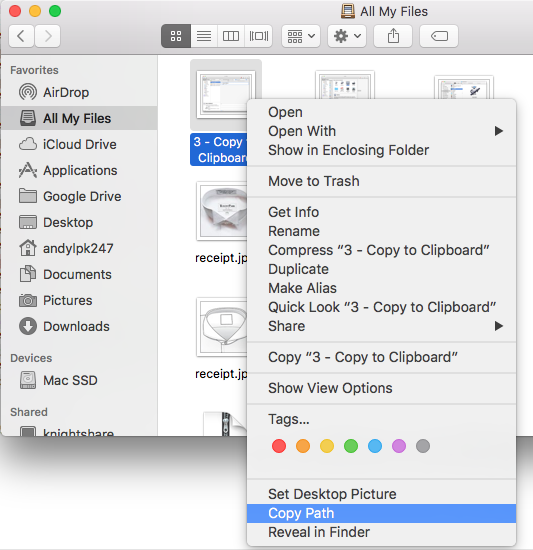
Recently, I discovered how to make it easy. Using Automator, I added a “Copy Path” action to the right-click (or “secondary-click”) menu that will copy the absolute file path to the clipboard! This makes it very easy to get file paths directly from Finder. I learned this method by reading an OS X Daily article, and since it was so useful, I decided to share it here.

My Mac

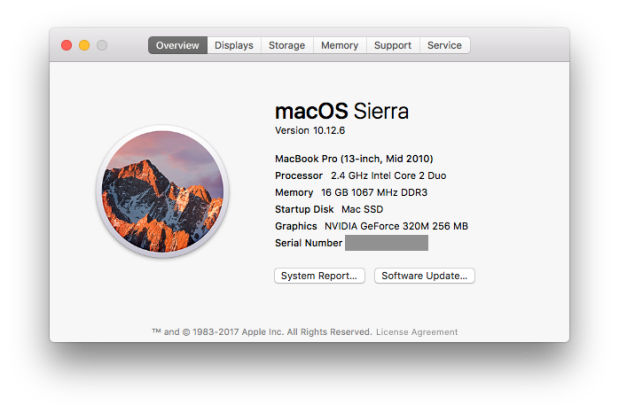
The following steps were run on my personal Mac, which has the following specs:

Current Mac Specs

It’s older than today’s kindergartners, but it still works reasonably well. I upgraded to 16GB memory and SSD storage.

The Steps

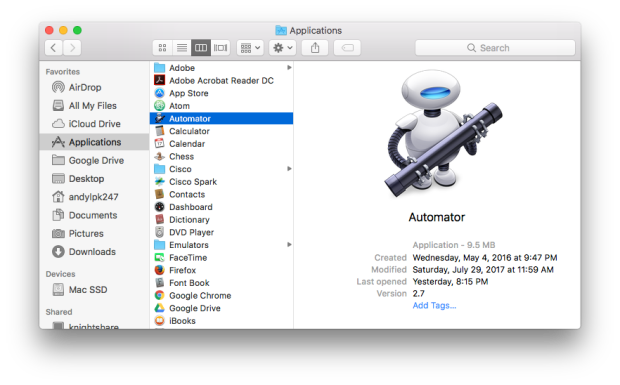
Launch Automator. (It’s in the Applications folder.)

1 - Automator.png

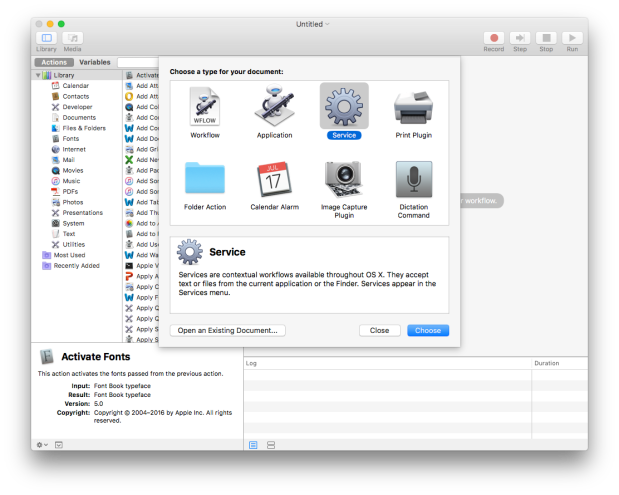
Create a new service by navigating to File -> New and selecting Service from the dialog box.

2 - New Service.png

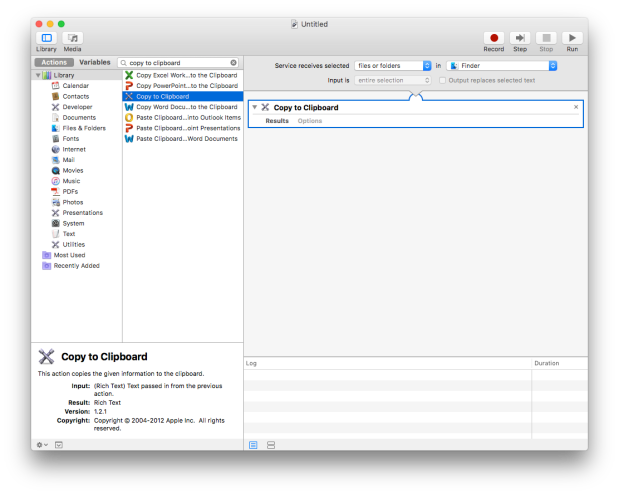
Under Actions, search for “Copy to Clipboard”, and drag it to the right side of the panel. Set “Service receives selected” to “files or folders” and “in” to “Finder”.

3 - Copy to Clipboard.png

Save the service with a name like “Copy Path”. Close Automator and open Finder. Right-click (or “secondary-click”) on any file – you should see the name of the new service as an available action. When you select it, the absolute file path is copied to the clipboard! You can then paste it (Cmd-V) into any text area.

4 - Copy Path

This new action has been very helpful to me while programming. I hope you also find it helpful!

BDD 101: Test Data

How should test data be handled in a behavior-driven test framework? This is a common question I hear from teams working on BDD test automation. A better question to ask first is, What is test data? This article will explain different types of test data and provide best practices for handling each. The strategies covered here can be applied to any BDD test framework. (Check the Automation Panda BDD page for the full table of contents.)

Types of Test Data

Personally, I hate the phrase “test data” because its meaning is so ambiguous. For functional test automation, there are three primary types of test data:

  1. Test Case Values. These are the input and expected output values for test cases. For example, when testing calculator addition “1 + 2 = 3”, “1” and “2” would be input values, and “3” would be the expected output value. Input values are often parameterized for reusability, and output values are used in assertions.
  2. Configuration Data. Config data represents the system or environment in which the tests run. Changes in config data should allow the same test procedure to run in different environments without making any other changes to the automation code. For example, a calculator service with an addition endpoint may be available in three different environments: development, test, and production. Three sets of config data would be needed to specify URLs and authentication in each environment (the config data), but 1 + 2 should always equal 3 in any environment (the test case values).
  3. Ready State. Some tests require initial state to be ready within a system. “Ready” state could be user accounts, database tables, app settings, or even cluster data. If testing makes any changes, then the data must be reverted to the ready state.

Each type of test data has different techniques for handling it.

Test Case Values

There are 4 main ways to specify test case values in BDD frameworks, ranging from basic to complex.

In The Specs

The most basic way to specify test case values is directly within the behavior scenarios themselves! The Gherkin language makes it easy – test case values can be written into the plain language of a step, as step parameters, or in Examples tables. Consider the following example:

Scenario Outline: Simple Google searches
  Given a web browser is on the Google page
  When the search phrase "<phrase>" is entered
  Then results for "<phrase>" are shown
  
  Examples: Animals
    | phrase   |
    | panda    |
    | elephant |
    | rhino    |

The test case value used is the search phrase. The When and Then steps both have a parameter for this phrase, which will use three different values provided by the Examples table. It is perfectly suitable to put these test case values directly into the scenario because the values are small and descriptive.

Furthermore, notice how specific result values are not specified for the Then step. Values like “Panda Express” or “Elephant man” are not hard-coded. The step wording presumes that the step definition will have some sort of programmed mechanism for checking that result links relate to the search phrase (likely through regular expression matching).

Key-Value Lookup

Direct specification is great for small sets of simple values, but one size does not fit all needs. Key-value lookups are appropriate when test data is lengthier. For example, I’ve often seen steps like this:

Given the user navigates to "http://www.somewebsite.com/long/path/to/the/profile/page"

URLs, hexadecimal numbers, XML blocks, and comma-separated lists are all the usual suspects. While it is not incorrect to put these values directly into a step parameter, something like this would be more readable:

Given the user navigates to the "profile" page

Or even:

Given the user navigates to their profile page

The automation would store URLs in a lookup table so that these new steps could easily fetch the URL for the profile page by name. These steps are also more declarative than imperative and better resist changes in the underlying environment.

Another way to use key-value lookup is to refer to a set of values by one name. Consider the following scenario for entering an address:

Scenario Outline: Address entry
  Given the profile edit page is displayed
  When the user sets the street address to "<street>"
  And the user sets the second address line to "<second>"  
  And the user sets the city to "<city>"
  And the user sets the state to "<state>"
  And the user sets the zipcode to "<zipcode>"
  And the user sets the country to "<country>"
  And the user clicks the save button
  Then ...

  Examples: Addresses
    | street | second | city | state | zipcode | country |
    ...

An address has a lot of fields. Specifying each in the scenario makes it very imperative and long. Furthermore, if the scenario is an outline, the Examples table can easily extend far to the right, off the page. This, again, is not readable. This scenario would be better written like this:

Scenario Outline: Address entry
  Given the profile edit page is displayed
  When the user enters the "<address-type>" address
  And the user clicks the save button
  Then ...

  Examples: Addresses
    | address-type |
    | basic        |
    | two-line     |
    | foreign      |

Rather than specifying all the values for different addresses, this scenario names the classifications of addresses. The step definition can be written to link the name of the address class to the desired values.

Data Files

Sometimes, test case values should be stored in data files apart from the specs or the automation code. Reasons could be:

  • The data is simply too large to reasonably write into Gherkin or into code.
  • The data files may be generated by another tool or process.
  • The values are different between environments or other circumstances.
  • The values must be selected or switched at runtime (without re-compiling code).
  • The files themselves are used as payloads (ex: REST request bodies or file upload).

Scenario steps can refer to data files using the key-value lookup mechanisms described above. Lightweight, text-based, tabular file formats like CSV, XML, or JSON work the best. They can parsed easily and efficiently, and changes to them can easily be diff’ed. Microsoft Excel files are not recommended because they have extra bloat and cannot be easily diff’ed line-by-line. Custom text file formats are also not recommended because custom parsing is an extra automation asset requiring unnecessary development and maintenance. Personally, I like using JSON because its syntax is concise and its parsing tools seem to be the simplest in most programming languages.

External Sources

An external dependency exists when the data for test case values exists outside of the automation code base. For example, test case values could reside in a database instead of a CSV file, or they could be fetched from a REST service instead of a JSON file. This would be appropriate if the data is too large to manage as a set of files or if the data is constantly changing.

As a word of caution, external sources should be used only if absolutely necessary:

  1. External sources introduce an additional point-of-failure. If that database or service goes down, then the test automation cannot run.
  2. External sources degrade performance. It is slower to get data from a network connection than from a local machine.
  3. Test case values are harder to audit. When they are in the specs, the code, or data files, history is tracked by version control, and any changes are easy to identify in code reviews.
  4. Test case values may be unpredictable. The automation code base does not control the values. Bad values can fail tests.

External sources can be very useful, if not necessary, for performance / stress / load / limits testing, but it is not necessary for the vast majority of functional testing. It may be convenient to mock external sources with either a mocking framework like Mockito or with a dummy service.

Configuration Data

Config data pertain to the test environments, not the test cases. Test automation should never contain hard-coded values for config data like URLs, usernames, or passwords. Rather, test automation should read config data when it launches tests and make references to the required values. This should be done in Before hooks and not in Gherkin steps. In this way, automated tests can run on any configuration, such as different test environments before being released to production.

Config data can be stored in data files or accessed through some other dependency. (Read the previous section for pros and cons of those approaches.) The config to use should be somehow dynamically selectable when tests run. For example, the path to the config file to use could be provided as a command line argument to the test launch command.

Config data can be used to select test values to use at runtime. For example, different environments may need different test value data files. Conversely, scenario tagging can control what parts of config data should be used. For example, a tag could specify a username to use for the scenario, and a Before hook could use that username to fetch the right password from the config data.

For efficiency, only the necessary config data should be accessed or read into memory. In many cases, fetching the config data should also be done once globally, rather than before each test case.

Ready State

All scenarios have a starting point, and often, that starting point involves data. Setup operations must bring the system into the ready state, and cleanup operations must return the system to the ready state. Test data should leave no trace – temporary files should be deleted and records should be reverted. Otherwise, disk space may run out or duplicate records may fail tests. Maintaining the ready state between tests is necessary for true test independence.

During the Test Run

Simple setup and cleanup operations may be done directly within the automation. For example, when testing CRUD operations, records must be created before they can be retrieved, updated, or deleted. Setup would create a record, and cleanup would guarantee the record’s deletion. If the setup is appropriate to mention as part of the behavior, then it should be written as Given steps. This is true of CRUD operations: “Given a record has been created, When it is deleted, …”. If multiple scenarios share this same setup, then those Given steps should be put into a Background section.

However, sometimes setup details are not pertinent to the behavior at hand. For example, perhaps fresh authentication tokens must be generated for those CRUD calls. Those operations should be handled in Before hooks. The automation will take care of it, while the Gherkin steps can focus exclusively on the behavior.

No matter what, After hooks must do cleanup. It is incorrect to write final Then steps to do cleanup. Then steps should verify outcomes, not take more actions. Plus, the final Then steps will not be run if the test has a failure and aborts!

External Preparation

Some data simply takes too long to set up fresh for each test launch. Consider complicated user accounts or machine learning data: these are things that can be created outside of the test automation. The automation can simply presume that they exist as a precondition. These types of data require tool automation to prepare. Tool automation could involve a set of scripts to load a database, make a bunch of service calls, or navigate through a web portal to update settings. Automating this type of setup outside of the test automation enables engineers to more easily replicate it across different environments. Then, tests can run in much less time because the data is already there.

However, this external preparation must be carefully maintained. If any damage is done to the data, then test case independence is lost. For example, deleting a user account without replacing it means that subsequent test runs cannot log in! Along with setup tools, it is important to create maintenance tools to audit the data and make repairs or updates.

Advice for Any Approach

Use the minimal amount of test data necessary to test the functionality of the product under test. More test data requires more time to develop and manage. As a corollary, use the simplest approach that can pragmatically handle the test data. Avoid external dependencies as much as possible.

To minimize test data, remember that BDD is specification by example: scenarios should use descriptive values. Furthermore, variations should be reduced to input equivalence classes. For example, in the first scenario example on this page, it would probably be sufficient to test only one of those three animals, because the other two animals would not exhibit any different searching behavior.

Finally, be cautioned against randomization in test data. Functional tests are meant to be deterministic – they must always pass or fail consistently, or else test results will not be reliable. (Not only could this drive a tester crazy, but it would also break a continuous integration system.) Using equivalence classes is the better way to cover different types of inputs. Use a unique number counting mechanism whenever values must be unique.

For handling unpredictable test data, check out Unpredictable Test Data.

BDD‑‑; Collaboration without Automation

In the previous post, I described the tradeoffs of using a BDD test automation framework without the full BDD process. But, what about the opposite? What if a team wants to adopt BDD practices without a test framework to support it? Again, behavior-driven practices are beneficial apart from automation, but not without shortcomings.

The Power of Process

BDD should be a refinement, not an overhaul, of Agile software development. All of the problems BDD solves are simply aspects of the development process that must be solved anyway. BDD simply provides formal practices for solving them uniformly. Consider how BDD addresses the following problems:

Problem Solution
Biz, dev, and test roles are siloed and do not talk together much. BDD brings these three roles together in Three Amigos meetings.
Acceptance criteria are missing or poorly defined, wasting in-sprint time. Acceptance criteria are formalized as specifications using Gherkin.
Product features are hard to explain. Scenarios describe individual behaviors in plain language.
Team members have open questions or conflicting views about behaviors. Example Mapping efficiently unifies a team’s understanding and identifies areas for further refinement.
Edge cases are overlooked during testing. Well-defined behavior scenarios capture specifications by example early in development.

All of these problems can be solved through better, behavior-driven practices, and none of them pertain to test automation.

Spec-Less Automation

BDD process improvements don’t necessarily need a BDD framework for test automation. Any test framework could still automate scenario steps. The major difference is that there would be no mechanism to translate Gherkin lines into method/function calls: The automation engineer would simply need to program test cases the “good old-fashioned way.” It would not be much different from translating any other procedure-driven test cases into code.

The weakness of this approach is that specifications are not strongly linked to the test automation. The end-to-end development process is less efficient because behavior scenarios must essentially be rewritten into automation code, rather than becoming part of the automation code. There is also a higher risk that automated test cases won’t cover the actual intention of the test steps. Review and maintenance are more difficult because engineers must always cross-examine the automation code with the Gherkin to make sure they align. All of these problems make it harder to shift left with QA work.

The lack of a behavior-driven test framework is also a double-edged sword for Gherkin steps. On one hand, steps do not need to be scrutinized as strongly in review, since automation code does not directly depend upon them. It is not critical to reuse steps word-for-word or to worry about parameterization. However, sloppy steps can lead to miscommunication and will make adopting a BDD test framework in the future very difficult.

Better Than Nothing

Just like for automation without collaboration, using BDD practices without using a BDD test framework does improve the development process. There aren’t really any disadvantages because the process problems must be solved anyway. A “BDD‑‑;” situation (that’s a postfix decrement, to denote that automation did not follow collaboration) isn’t ideal, but at least it’s better than nothing.

‑‑BDD; Automation without Collaboration

Does it make sense to use a BDD test automation framework on a team that does not follow a Behavior-Driven Development process? I’ve faced this questions a few times recently. Although some BDD benefits will be missing, the answer is still yes, BDD test automation frameworks are still useful apart from a full BDD process. This article covers strengths and weaknesses to explain why.

Strengths

BDD test frameworks force tests to be behavior-driven, not procedure-driven. Behavior-driven tests focus on individual behaviors, making them concise and comprehensible. Impertinent factors are removed from test cases. Imperative details are specified only when necessary. Test reports are more descriptive, and test results are more meaningful. Tests written without a behavior-driven framework are more likely to become long, unnecessarily complicated, and fragile.

BDD test frameworks also provide inherent structure with steps. Steps are the basic building blocks of test cases, regardless of the type of test automation framework used. While almost all run-of-the-mill test frameworks (like JUnit, xUnit.net, or pytest) provide structure to write separate, independent test cases (usually as methods or functions), they lack structure to write separate test case steps. Typically, programmers end up writing test case logic directly into the test methods/functions, or they write ad hoc helper methods/functions/classes to get the job done. This approach often lacks consistency (especially when multiple engineers contribute to the automation code), and thus reusability suffers and duplication creeps in. Gherkin steps are like guide rails for test cases.

Gherkin steps provide easy reusability for rapid development. In a mature automation code base, new test cases can be written using a few short lines of pre-existing steps. And pre-existing steps can be trusted to work because they’ve been tested before. Parametrized steps enable even greater reuse.

Gherkin steps are self-documenting because they are written in plain English. This makes tests easier to do many things:

  • to write, because it provides an outline for the test in plain language
  • to review, because others less familiar with the feature can quickly understand concise scenarios
  • to maintain, because problems can be pinpointed
  • to explain, because non-technical people can’t read code

Much like any other test frameworks, BDD frameworks integrate with other testing packages and design patterns. For example, it is common to use a BDD framework with Selenium WebDriver and the Page Object Model to do Web UI testing. Other common packages for needs like logging, assertions, and REST API calls also work well with BDD frameworks.

Finally, BDD test frameworks open the door to shifting left. They can be the starting point for QA-led BDD. Demonstrating the value in behavior-driven automation can open interest in Three Amigos collaboration, which can then lead to more process improvements and better software quality.

Weaknesses

BDD test frameworks require extra development overhead at first. They aren’t as simple to use as unit-like test frameworks. It also takes a lot of practice to write good Gherkin. I’ve talked with engineers (typically developers) who see the feature file layer as unnecessary “plaster” over test cases. Without full team collaboration and cooperation, the justification for BDD diminishes.

Strict behavior independence may also make execution time less efficient. While steps may be reused, common setup operations must be run for each test. CRUD operations illustrate this point well. In a BDD framework, each operation (create, retrieve, update, delete) would be covered by a separate test scenario. However, the operations are interdependent: a test must create a thing before it can delete the thing. Thus, the delete scenario will borrow some logic from the create scenario. A procedure-driven test could more efficiently stack steps into one test case like this: create, retrieve, update, retrieve, delete, retrieve. Assertions would be interleaved with operations. This one test case would cover multiple behaviors, but it would save execution time by avoiding repeated creations for setup and deletions for cleanups. Many times, people have even asked me if there is a way to sequence Gherkin scenarios together to achieve the same effect! (This is not possible, and it would violate test independence.)

If BDD frameworks are used without a BDD process, then BDD could become pigeonholed as a “QA thing,” forever banished to the realm of the far right (the opposite of shift left, not the political spectrum). This could raise barriers to collaboration if not handled properly.

Furthermore, the lack of the full BDD means that many BDD benefits will go missing. Miscommunications could still easily happen because biz and dev would not be involved in defining behavior scenarios. Delivery deadlines could still be missed because testing and automation cannot readily shift left. Out of the 12 major benefits of BDD, the first 4 would be lost.

Conclusion

Overall, I think the advantages of BDD test automation frameworks outweigh the disadvantages for most above-unit functional testing needs, regardless of whether or not a team uses a full BDD process. Ideally, a team would embrace full-BDD, but that’s not always reality. A “‑‑BDD;” situation (that’s a prefix decrement, to note that collaboration was missing before automation) can still be seen as a glass half-full.